Send a patient a one-off message from their record
Send one patient a short text or email from their record: "please call the practice", "your form is ready to collect". This is for messages that are not a reminder, a recall or a letter.
Before you start
- You need the
comms.sendpermission. Every role has it unless your practice has changed that (KB-121 — Change what each role may do in Settings → Permissions). - Your practice manager writes the saved messages you choose from (KB-122 — Set up Settings → Patient messaging: email, SMS and WhatsApp channels, DKIM, the bounce mailbox and message wording). If none has been written yet, the window says so and there is nothing to send.
- The patient needs a mobile number for a text. For an email they need an address on file and consent to email.
Send a message
- Open the patient's record and go to the Clinical history tab.
- On the Messages panel, choose Send a message.
- Choose the Message to send. What it will say shows its wording. The patient's first name and your practice's name and number are filled in when it goes.
- Choose Send.
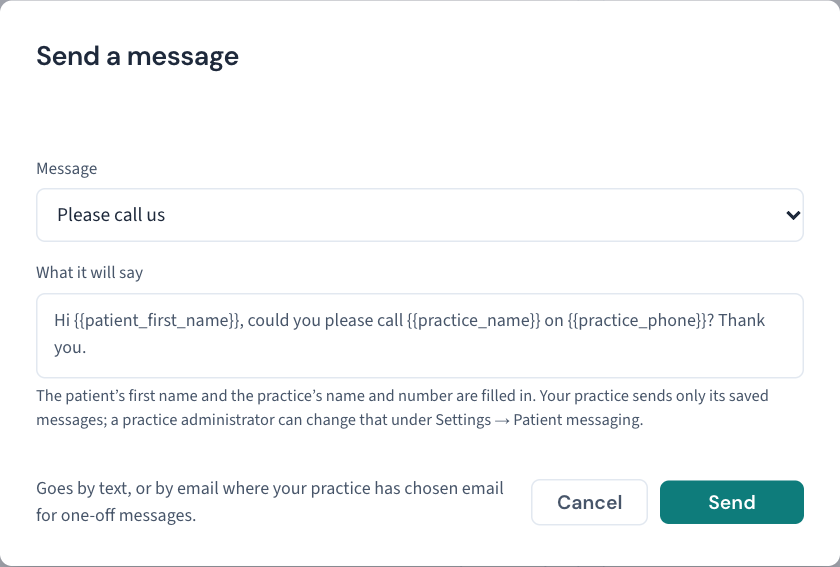
A note confirms where it is going. The message appears on the Messages panel as queued, and changes to sent when it goes (KB-123 — Read the reminder queue in Settings → Messages, and know which messages screen you need).
If your practice allows typed messages
Your practice manager can let staff type their own message. If they have, the window shows a box you can type in, and the list has Write my own. You can also change a saved message before sending it.
Important: Do not put a result, a diagnosis or a medicine in a message. A text can be read on a lock screen or by whoever is holding the phone. Ask the patient to call instead.
A typed message is recorded on the patient's audit trail as typed, with who sent it. It can be up to 480 characters.
How it is sent
- By text, unless your practice has ticked Email for one-off messages in Settings → Patient messaging. Where both are ticked, the patient's preferred contact method decides.
- Never by WhatsApp. WhatsApp only delivers wording Meta approved in advance, and a one-off message has none.
- One message goes each time you choose Send. There is no undo once it has gone.
What each refusal means
| Message | What it means | What to do |
|---|---|---|
| This practice has no saved messages yet | Nobody has written one | Ask your practice manager to add one in Settings → Patient messaging |
| This practice sends only its saved messages | You typed or changed the wording, and your practice has not allowed typed messages | Choose a saved message as it is, or ask your practice manager |
| That saved message is no longer in use | It was retired while the window was open | Close the window, open it again and choose another |
| A sentence about a mobile number, or about channels | No text or email can reach this patient | Add their mobile number, or their email address and consent to email, to their details |
| This patient must not be contacted | The record says the patient has died or left the practice | Do not message them. Check the record with your practice manager if that is wrong |
What is recorded
Each message is on the patient's audit trail as One-off message sent to the patient: who sent it, how it went, and whether it was a named saved message or typed. The wording is on the Messages panel.
If that didn't work
If Send a message is missing from the Messages panel, your role does not have the comms.send permission. If a message stays queued, the practice's SMS gateway or mail server is not connected; see KB-060 — Patient emails or SMS reminders not arriving: check Settings → Patient messaging.
Still stuck? Raise a ticket at support.curaeon.com.au or call 1300 XXX XXX. If your clinic can't see patients right now, call and choose option 1. Support is staffed Monday to Friday, 8:00–18:00 Sydney time; outside those hours a call or text to the same number is answered on a best-effort basis.
Related articles
- KB-122 — Set up Settings → Patient messaging: email, SMS and WhatsApp channels, DKIM, the bounce mailbox and message wording — Set up Settings → Patient messaging: email, SMS and WhatsApp channels, DKIM, the bounce mailbox and message wording
- KB-123 — Read the reminder queue in Settings → Messages, and know which messages screen you need — Read the reminder queue in Settings → Messages, and know which messages screen you need
- KB-060 — Patient emails or SMS reminders not arriving: check Settings → Patient messaging — Patient emails or SMS reminders not arriving: check Settings → Patient messaging
- KB-121 — Change what each role may do in Settings → Permissions — Change what each role may do in Settings → Permissions
- KB-050 — Email a letter to a patient: password, refused characters, "I can't open it" — Email a letter to a patient: password, refused characters, "I can't open it"