Use the assessment tools: K10, PHQ-9, DASS-21, GDS-15, MMSE, AUDIT-C, AUSDRISK and cardiovascular risk
Open one of the eight assessment tools from a patient's record, complete it, and know where the saved result shows afterwards. This article describes what the screens do. It is not clinical guidance.
Before you start
- Recording a result needs the
chart.writepermission. Clinicians and administrators have it. Nurses and reception do not, unless your practice has granted it in Settings → Permissions (KB-121 — Change what each role may do in Settings → Permissions). - Anyone who can open the record can read past results. On AUSDRISK, MMSE and cardiovascular risk the save button is hidden for a role that cannot record. On the other five the form still shows, and saving is refused with your role does not permit this action.
- Opening a patient's record may ask your reason first (KB-062 — Why Curaeon asks your reason for opening a record). A restricted record shows its notice in place of every tool (KB-061 — Restrict a patient's record, and open one in an emergency).
The eight tools
| Tool | What you enter | What Curaeon shows, in its own words |
|---|---|---|
| K10 | 10 statements rated 1 to 5, about the past 4 weeks | A total out of 50, where 10 is the lowest possible. Low distress 10 to 19, Moderate distress 20 to 24, High distress 25 to 29, Very high distress 30 to 50 |
| PHQ-9 | 9 statements rated 0 to 3, about the last 2 weeks, and one unscored question about difficulty | A total out of 27. Minimal 0 to 4, Mild 5 to 9, Moderate 10 to 14, Moderately severe 15 to 19, Severe 20 to 27 |
| DASS-21 | 21 statements rated 0 to 3, about the past week | Three scores out of 42, for Depression, Anxiety and Stress. Each is the item sum doubled, with its own band: Normal, Mild, Moderate, Severe or Extremely severe |
| GDS-15 | 15 questions answered Yes or No, about the past week | A total out of 15 and the answers that scored. Normal 0 to 4, Mild 5 to 8, Moderate 9 to 11, Severe 12 to 15 |
| AUDIT-C | 3 questions, each with its own five answers, about the past year | A total out of 12, Positive at or above the cut-off and Negative below it. The cut-off is 4 for men and 3 for women |
| AUSDRISK | 11 questions, including a waist measurement | A score, low risk (5 or less), intermediate risk (6 to 11) or high risk (12 or more), and the sentence the published form prints beside that score |
| MMSE | The points you awarded in each of 11 domains, from your practice's own licensed copy | A total out of 30 and the domains where points were lost. No band: the screen says published cut-offs vary by source, education and language |
| Cardiovascular risk | The risk factors, and the result you read off the official calculator | Nothing calculated. The percentage and the category (low, intermediate or high) are stored as you typed them |
Each result page carries its own caution in the product's words, for example that a score is not a diagnosis, and that K10, DASS-21 and GDS-15 contain no question about suicide or self-harm.
Open a tool
- Open the patient's record and choose the Observations tab.
- At the top of the Observations panel, choose the tool: DASS-21, PHQ-9, K10, AUDIT-C, GDS-15, CVD risk, AUSDRISK or MMSE. The INR link in the same row opens the patient's warfarin record (KB-151 — Manage warfarin patients on the INR monitoring screen).

The tool opens on its own page with the patient's name and date of birth at the top right. Check it is the right patient. Back to record returns you to the record's Overview.
Complete a questionnaire and save it
K10, PHQ-9, DASS-21, GDS-15 and AUDIT-C work the same way.
- Read the patient the instruction in the box at the top. The statements run down the page and the ratings across. The wording of each rating is printed once, above the statements.
- Choose one answer in each row. The counter shows how many are answered. Clear all empties the form.
- Choose Score and record.
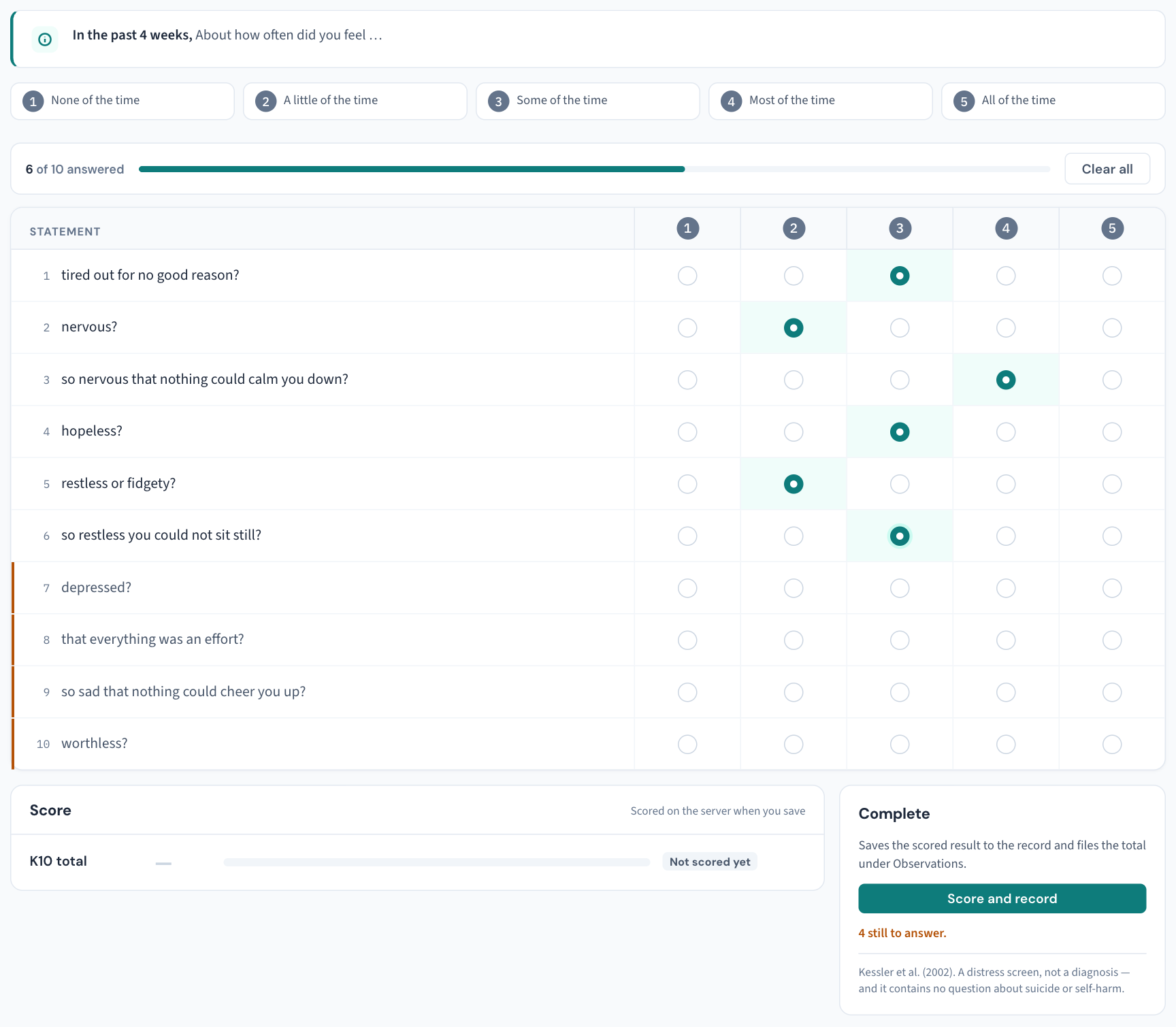
Nothing is added up while you fill the form in. The Score panel reads Not scored yet until you save, and the score is worked out on the server. If a row is unanswered, Curaeon does not save. It says how many are left and scrolls to the first one.
After saving, the page shows the result under Recorded. Record another clears the form for a new one. Answers are not kept if you leave the page before saving.
PHQ-9 item 9. If the patient gives any answer above 0 to the item about being better off dead or hurting themselves, the form says Positive risk screen at that row straight away, and the result shows it above the score. From then on the record's Overview carries a Positive suicide risk screen banner with the date. The banner follows the latest PHQ-9 only. It goes when a later PHQ-9 has that item answered 0.
What is read from the record, and what you type
| Tool | Read from the record | Typed or chosen on the form |
|---|---|---|
| AUDIT-C | The patient's sex, to choose the cut-off. If it is not recorded as male or female, the lower cut-off is used and the result says so | The three answers |
| AUSDRISK | Nothing | Every answer, including age group and gender, the waist measurement in centimetres, and which waist table applies. The waist question counts as answered only when both parts are given |
| Cardiovascular risk | Nothing | Every field |
| The other five | Nothing | Every answer |
The cut-off an AUDIT-C was judged by is stored with it. Correcting the patient's sex later does not change a result already recorded.
Record a cardiovascular risk assessment
Curaeon does not calculate cardiovascular risk. The screen says so, and there is no calculate button.
- Under New assessment, enter the risk factors you have: Assessed on, Age, Sex used, Systolic BP (mmHg), Total cholesterol (mmol/L), HDL (mmol/L), Smoking, Postcode and the tick boxes. Ticking Diabetes opens the diabetes fields.
- Choose the Australian CVD Risk Calculator link at the top of the page. It opens in a new tab. Curaeon cannot pass your figures to it, so enter them there.
- Back in Curaeon, under Result, from the calculator, enter 5-year risk (%), Category as shown and the Calculator it came from.
- Choose Record assessment.
If the calculator was not run, leave the percentage empty and give the reason in Or, why it was not calculated. Two reasons are offered as buttons above that box. Curaeon refuses an assessment with neither a percentage nor a reason, and a percentage with no Calculator chosen. It does not check the category against the percentage.
Record an MMSE
The MMSE is copyrighted, so Curaeon shows only the eleven domain names and the points each is worth. Give the examination from your practice's licensed copy, then choose the points awarded in each domain. Administration notes is for anything that affects how the total reads, such as an interpreter. The save button shows the running total, for example Record 27/30. A partly scored examination is refused, and the message names the missing domain.
Where a saved result appears
- On the tool's own page, under Previous (Previous assessments or Previous examinations on some tools), newest first with its date. This is where you compare one result with the last.
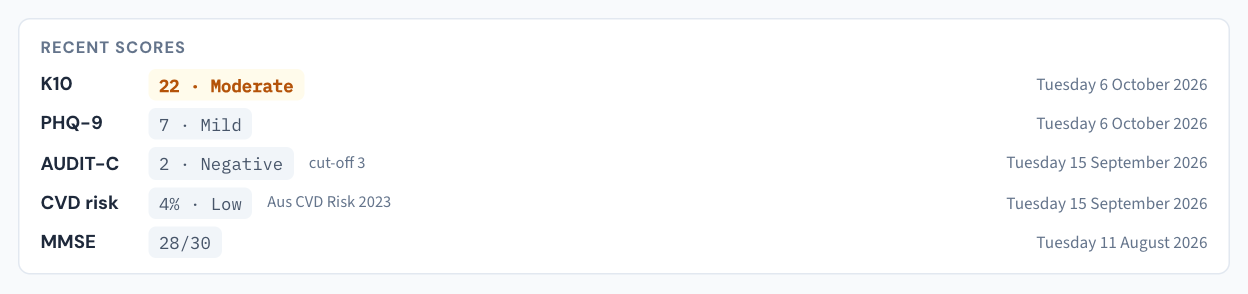
- On the record's Overview, in the Recent scores strip: the latest result of each tool with its date. Choose a tool's name there to open it. The strip appears once the patient has at least one result.
- On the Observations tab, as a card with a trend: K10, PHQ-9, GDS-15, AUDIT-C, MMSE, Diabetes Risk for AUSDRISK, CV Risk for the cardiovascular percentage, and three DASS-21 cards. A cardiovascular assessment recorded as not calculated adds no point to the trend.
- In the consult, if one is open. A tool is scored on its own page and is not part of any consult. When you score one while the patient's consult is open, the consult's note shows Scores recorded this visit above its sections, with Add to Examination (KB-143 — Write and sign off a consult note).
- In the Audit log, as Assessment recorded.
Take off a result recorded by mistake
A result saved on the wrong patient, or saved twice, is marked Entered in error. You need chart.write.
- Open the tool on the patient's record.
- Under Previous, find the result and choose Entered in error beside it.
- Read the window, then choose Mark entered in error. To leave it, choose Keep it.
The result leaves the tool's list and Recent scores, and its score comes off the trend on the Observations tab in the same step. For DASS-21 all three scores go. It stays on the record marked entered in error, with your name and the time, and the Audit log shows Assessment entered in error. It cannot be put back from the screen.
This is for a result recorded by mistake. A score that was right on the day is part of the patient's history, even if it has changed since: leave it and record the new one.
Note: A tool's score cannot be marked from the list of readings on the Observations tab. That list says so and sends you to the tool. Mark the saved result here and its reading goes with it.
What the tools do not do
- No editing. A tool page has no control to change a saved result. Recording it again adds a new result, and both stay under Previous. If the first was a mistake, mark it Entered in error as above.
- No print page. There is no printable version of a completed questionnaire.
- Not pulled into letters. Insert from the record in the letter editor does not offer assessment scores (KB-106 — Write a letter in the editor: Insert from the record, { } Field, and the formatting that survives print and email). Type the score into the letter.
If that didn't work
If the page shows an error in place of the form, the questionnaire could not be loaded from your server. Go back to the record and open the tool again. If saving is refused with a message about your role, ask your practice manager whether your role should have chart.write.
Still stuck? Raise a ticket at support.curaeon.com.au or call 1300 XXX XXX. If your clinic can't see patients right now, call and choose option 1. Support is staffed Monday to Friday, 8:00–18:00 Sydney time; outside those hours a call or text to the same number is answered on a best-effort basis.
Related articles
- KB-145 — Record allergies, history and observations — Record allergies, history and observations
- KB-151 — Manage warfarin patients on the INR monitoring screen — Manage warfarin patients on the INR monitoring screen
- KB-121 — Change what each role may do in Settings → Permissions — Change what each role may do in Settings → Permissions
- KB-062 — Why Curaeon asks your reason for opening a record — Why Curaeon asks your reason for opening a record
- KB-106 — Write a letter in the editor: Insert from the record, { } Field, and the formatting that survives print and email — Write a letter in the editor: Insert from the record, { } Field, and the formatting that survives print and email