Manage warfarin patients on the INR monitoring screen
Start warfarin monitoring on a patient's record, record each INR with the date of the next test, and use the practice-wide list to find and remind the patients who are due. Curaeon records the dose a clinician decided. It never suggests one.
Before you start
- Anyone signed in can open the INR monitoring list and send a reminder. Chasing an overdue test is front-desk work.
- Starting or stopping monitoring and recording a result need the
chart.writepermission. Clinicians and administrators have it. Other roles do not unless your practice has granted it (KB-121 — Change what each role may do in Settings → Permissions). Without it, saving is refused with your role does not permit this action. - Reminders go by text unless your practice has ticked another route for INR messages in Settings → Patient messaging (KB-122 — Set up Settings → Patient messaging: email, SMS and WhatsApp channels, DKIM, the bounce mailbox and message wording).
Two screens
| Screen | What it is | How to reach it |
|---|---|---|
| Anticoagulation | One patient's warfarin record: the target range, every INR, the dose history | On the patient's record, Observations tab, choose INR |
| INR monitoring | Every patient in the practice whose INR is due today or overdue | From Today, the Clinical or Practice view, Monitoring card, choose INR monitoring. Or choose Practice worklist at the top of any patient's Anticoagulation screen |
The INR monitoring row on the Monitoring card is a link only while somebody is due. When nobody is, the card says so and the list is still reachable from Practice worklist.
Start monitoring a patient
- Open the patient's Anticoagulation screen. With no course open it shows Start warfarin monitoring.
- Enter the Indication. It is required.
- Check Target low and Target high. They open at 2.0 and 3.0. Set them to this patient's target range.
- Check Started on. It opens on today.
- Choose Start course.
A patient with no INR recorded counts as due from the day the course started, so a backdated start shows as overdue straight away. A patient can have one open course at a time.
Record a result
- On the patient's Anticoagulation screen, go to Record an INR.
- Enter Tested on and the INR, with no more than one decimal place.
- Enter the Dose (mg/week) the clinician has decided, or tick Dose withheld. The dose is optional.
- Enter Next INR due. It is required. This is the date the patient appears on the practice list.
- Add a Note if you want one, then choose Record result.
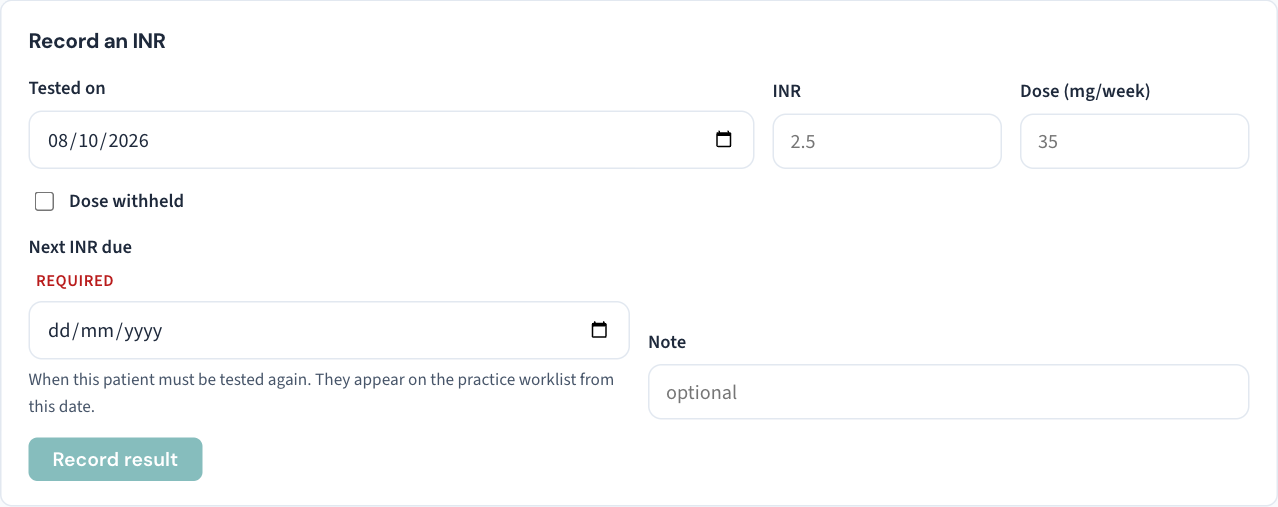
A note confirms the value, where it sits and the next due date. The screen then shows:
- The standing, at the top: the date the next INR is due, or how many days overdue it is.
- The latest result: In range, Below target or Above target, judged against this patient's own range. The range includes both ends. A result of 5.0 or more is also tagged Critical.
- Dose history: how many results were in range, how many dose adjustments there have been, a chart of INR and weekly dose, and a table with Tested, INR, Dose, Change, Next due and Note. The count of results in range is a count. The screen says it is not Time in Therapeutic Range.
Each result is also filed under INR on the Observations tab, and in the Audit log as INR result recorded.
| Message | What it means | What to do |
|---|---|---|
| inr must have one decimal place, like 2.5 | More than one decimal place was typed | Enter it as the lab reported it |
| an INR must be greater than zero | The value is zero | Check the result |
| the next test cannot be before the one being recorded | Next INR due is earlier than Tested on | Correct one of the dates |
| this patient already has an open anticoagulation course | A second course was started | Use the open course, or stop it first |
Work the practice list
INR monitoring lists the patients on anticoagulation whose INR is due or overdue, most overdue first. The top of the screen shows how many are due or overdue and how many have never been tested.
| Column | What it shows |
|---|---|
| Overdue | Days overdue, or today |
| Due | The date the test was due |
| Last INR | The last value and where it sat, or Never tested |
| Target | The patient's range |
| Indication | Why the patient is on warfarin |
| Last reminded | The date of the last reminder, or Never |
Rows where the last INR was above target, or where no INR has been recorded, are highlighted. Choose Open on a row to go to that patient's Anticoagulation screen.
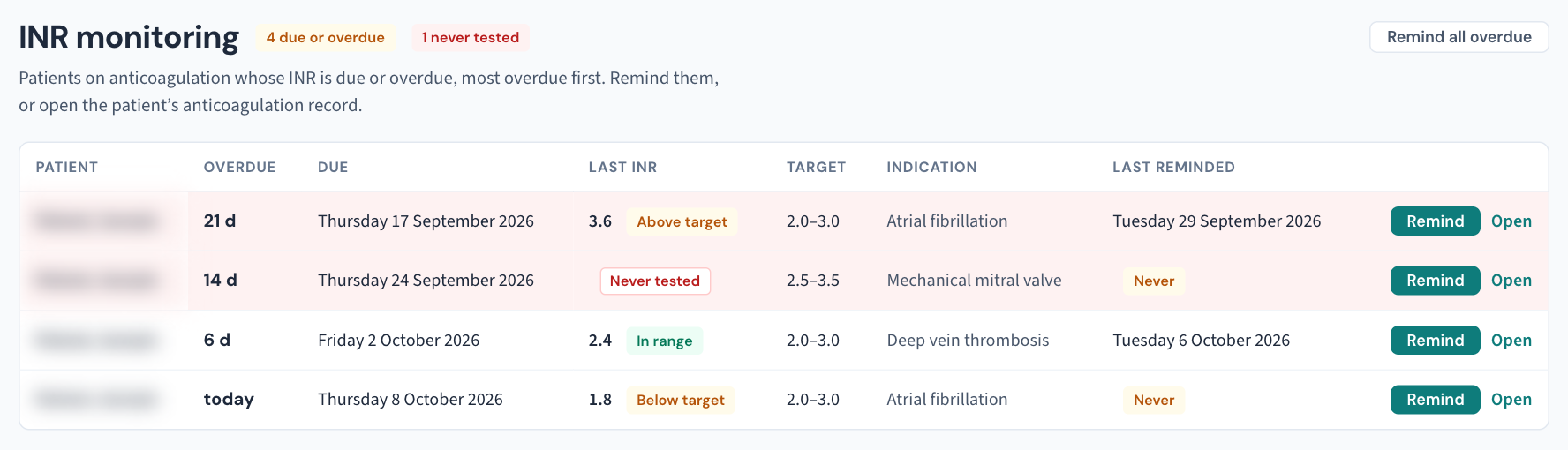
A patient leaves the list when a new result is recorded with a Next INR due in the future, or when their course is stopped.
Remind patients
- Remind on a row queues one reminder for that patient.
- Remind all overdue queues a reminder for everyone on the list. It skips anyone with no mobile number, anyone already holding a queued reminder, and anyone reminded in the last 14 days. The note afterwards counts each reason separately.
The built-in reminder names your practice, says the test is due or how many days ago it was due, and gives the number to call. It never contains the result. Your practice manager can change its wording in Settings → Patient messaging (KB-122 — Set up Settings → Patient messaging: email, SMS and WhatsApp channels, DKIM, the bounce mailbox and message wording). Queued reminders are listed in Settings → Messages (KB-123 — Read the reminder queue in Settings → Messages, and know which messages screen you need).
| Message | What it means | What to do |
|---|---|---|
| patient has no mobile number on file | Texts are the only route and there is no number | Add the mobile number to the patient's details |
| the patient cannot be reached on any channel the practice sends this message on… | None of the routes your practice ticked reaches this patient | Check their mobile number, email address and email consent |
| this patient must not be contacted (deceased, or no longer with the practice) | The record says so | Do not remind them. Check the record if that is wrong |
| a reminder for this course is already queued and unsent | One is waiting to go | Nothing to do. See KB-060 — Patient emails or SMS reminders not arriving: check Settings → Patient messaging if it stays queued |
Take off a result recorded by mistake
A result typed against the wrong patient, or with the wrong value, is marked Entered in error. You need chart.write.
- On the patient's Anticoagulation screen, find the result in the Dose history table.
- Choose Entered in error on its row.
- Read the window, then choose Mark entered in error.
Important: The dose and the next test date recorded with that result go with it. The course goes back to the result before, so the standing at the top may change and the patient may show as overdue. Check the dose the patient is taking and when their next test is due, then record the correct result.
The result leaves the table, the chart and the INR trend on the Observations tab. It stays on the record marked entered in error, with your name and the time, and the Audit log shows INR result entered in error. It cannot be put back from the screen. A result on a stopped course can be marked in the same way.
Change the target range
A target can change, for example when a mechanical valve is added to atrial fibrillation. Change it on the open course. Do not stop the course and start another, which splits the history in two.
- On the patient's Anticoagulation screen, choose Change target range, below the dose history.
- Enter Target low and Target high, each with no more than one decimal place.
- Choose Change range.
Every result on the course, earlier ones included, is then judged against the new range, so a result that read In range may now read Below or Above. The Audit log records the range before and after.
| Message | What it means |
|---|---|
| Enter both ends of the range. | One box is empty |
| Each end is a number with at most one decimal place, such as 2.5. | A value has two decimal places, or is not a number |
| The range must run low to high. | Target high is not above Target low |
Change range stays off until the range is different from the one the course has.
Stop monitoring
- On the patient's Anticoagulation screen, choose Stop anticoagulation.
- Enter the Reason. It is required.
- Choose Stop course.
The patient leaves the practice list. Results already recorded stay on the record, and the course is listed under Previous courses with its dates and the reason.
What the lists leave out
The practice list leaves out a restricted record for anyone not named on it and says how many it left out (KB-061 — Restrict a patient's record, and open one in an emergency).
If that didn't work
The Anticoagulation screen has no control to edit a result once it is recorded. If a result is wrong, mark it Entered in error and record it again, as above. If you cannot see Entered in error or Change target range, your role does not have chart.write.
Still stuck? Raise a ticket at support.curaeon.com.au or call 1300 XXX XXX. If your clinic can't see patients right now, call and choose option 1. Support is staffed Monday to Friday, 8:00–18:00 Sydney time; outside those hours a call or text to the same number is answered on a best-effort basis.
Related articles
- KB-102 — Start a care plan from a template, share templates between sites, and keep Plan reviews and INR clear — Start a care plan from a template, share templates between sites, and keep Plan reviews and INR clear
- KB-122 — Set up Settings → Patient messaging: email, SMS and WhatsApp channels, DKIM, the bounce mailbox and message wording — Set up Settings → Patient messaging: email, SMS and WhatsApp channels, DKIM, the bounce mailbox and message wording
- KB-123 — Read the reminder queue in Settings → Messages, and know which messages screen you need — Read the reminder queue in Settings → Messages, and know which messages screen you need
- KB-091 — Recalls and reminders FAQ — Recalls and reminders FAQ
- KB-121 — Change what each role may do in Settings → Permissions — Change what each role may do in Settings → Permissions