Write and print an asthma action plan
Create an asthma action plan on a patient's record, write its four steps, and print the page the patient takes home.
Before you start
- Writing or revising a plan needs the
chart.writepermission. Clinicians and administrators have it. Other roles do not unless your practice has granted it (KB-121 — Change what each role may do in Settings → Permissions). - Anyone signed in can read and print a plan, so the front desk can reprint one a patient has lost. A role that cannot write sees: You can read and print this plan. Writing one is a clinical decision, so it is limited to clinicians.
- The form starts empty, on purpose. Curaeon supplies the four step headings and nothing else. No signs, actions or doses are suggested or filled in.
Create the plan
An asthma action plan is a kind of care plan, so it starts on the Care Plans tab.
- Open the patient's record and choose the Care Plans tab.
- Choose + New care plan.
- In Plan type, choose Asthma action.
- Leave Start from on A blank plan. The other two choices are not offered for this plan type: an asthma action plan is revised on the plan itself, and there is nothing to template.
- Choose Create draft. Curaeon opens the new care plan's page.
- On the care plan page, choose The written action plan.
The care plan holds the review date. The written steps are a separate page, which is the one that prints.
Write the four steps
- Under Usual medicines, fill in Reliever. It is required. Preventer, Other medication, Spacer / device, Best peak flow (L/min) and Triggers are optional.
- Under The four steps, complete each step in turn:
- When well
- When symptoms get worse
- When symptoms are severe
- Asthma emergency — call 000
- For each step, type Signs to watch for and What to do. Both are required for all four steps. Peak flow from and to are optional.
- Choose Save plan.
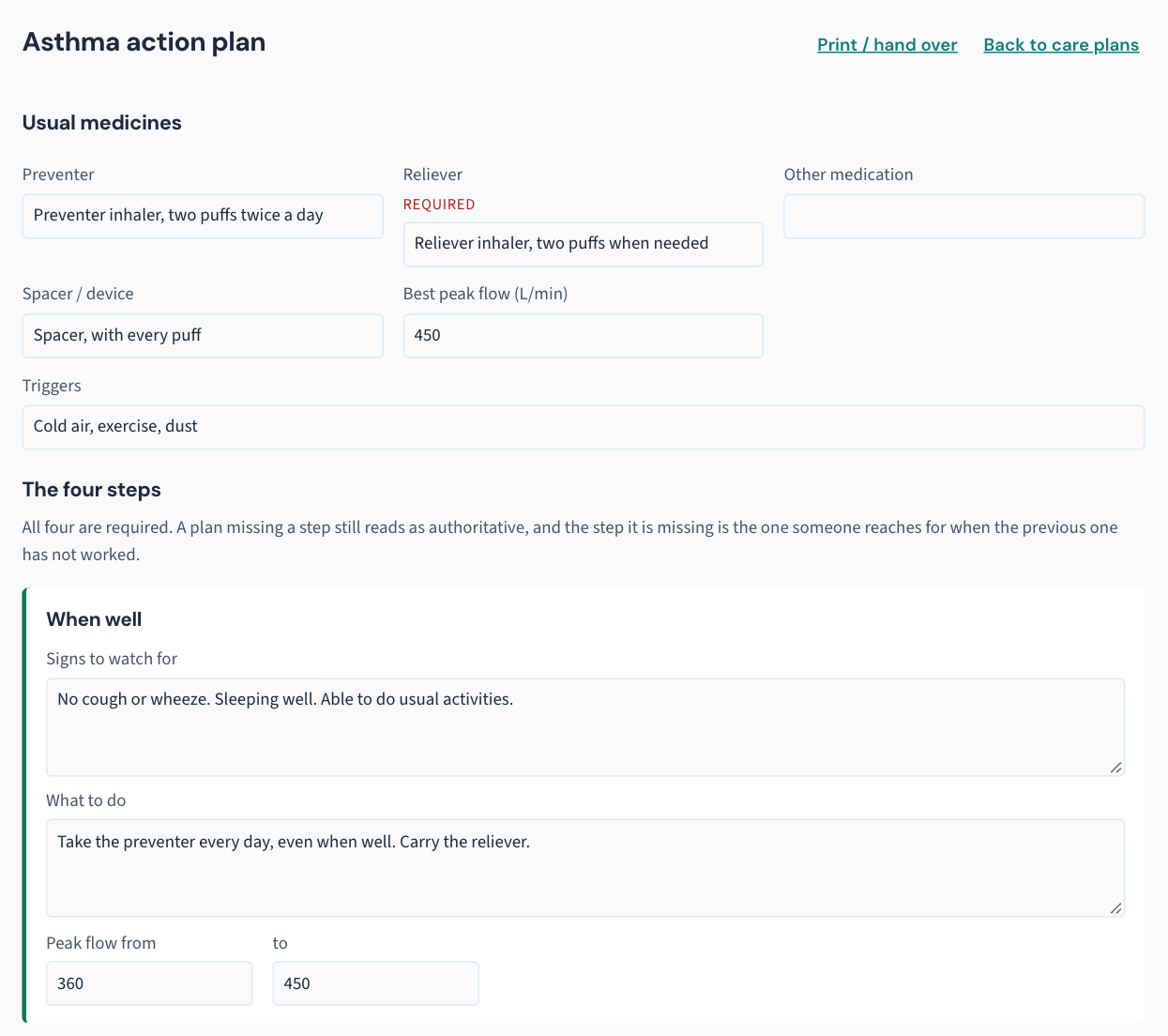
A note confirms Asthma action plan saved. The Print / hand over link appears at the top of the page once the plan has been saved.
What each refusal means
The plan is saved whole or not at all. If something is missing, nothing is saved and the message says what.
| Message | What it means | What to do |
|---|---|---|
| the reliever is required — every step of the plan refers to it | Reliever is empty | Fill it in |
| step … needs the signs to watch for | That step has no signs | Type them |
| step … needs what to do… | That step has no actions | Type them |
The message names the step by a short code: when_well, getting_worse, severe or emergency, in the same order as the four headings.
Print the plan
- Choose Print / hand over. It is on the plan form, and on the plan's card on the Care Plans tab.
- Check the page on screen, then choose Print.
The printed plan has your practice's letterhead and the title Asthma Action Plan, the patient's name, date of birth, MRN and Medicare number, and then:
- My usual asthma medicines: the medicines you filled in. Empty ones are left off.
- My best peak flow and Things that set off my asthma, if you entered them.
- The four steps, always in the same order, each with Signs and What to do. If you entered peak flow for a step it prints as a range, or as "below" or "above" a single figure.
- Your practice's own paragraph, if one has been written.
- A footer with the date the plan was written, Review due and its date if the care plan has a review date, and a line telling the reader not to follow someone else's plan and giving your practice's phone number.
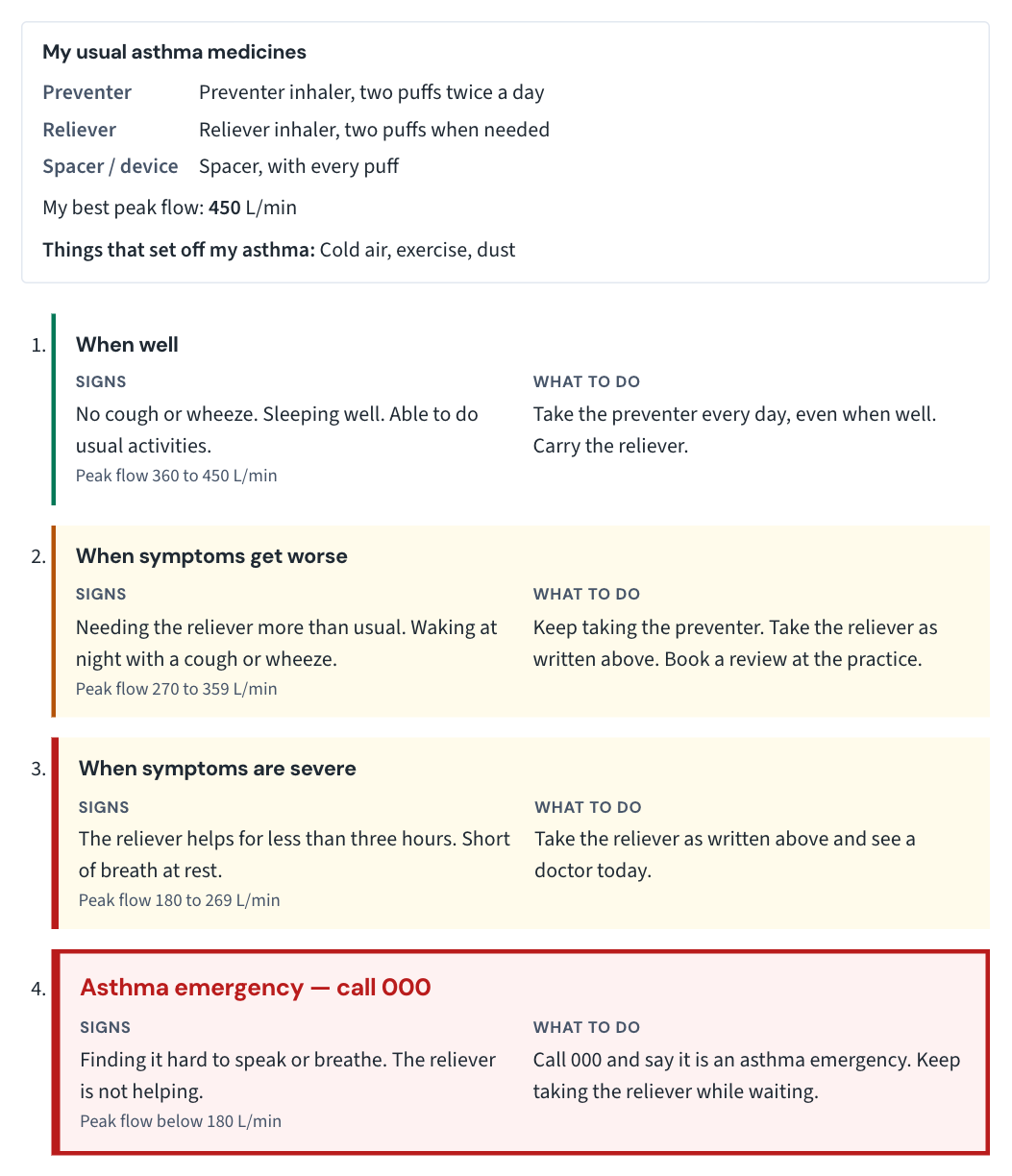
Every word of the steps is what the clinician typed. Each print is recorded in the Audit log.
An asthma action plan is printed and handed over. Its care plan page has no Send to patient, which other finalised care plans have (KB-102 — Start a care plan from a template, share templates between sites, and keep Plan reviews and INR clear).
Tip: The paragraph at the end of the plan is your practice's to write, for example after-hours advice. An administrator sets it in Settings → Templates → Text on printouts, in the Asthma action plan box.
Revise a plan
- On the Care Plans tab, open the plan's card and choose Write / revise the action plan.
- Change what has changed.
- Choose Save revision.
The plan is revised in place. Curaeon does not start a new asthma action plan from an old one. The Audit log records Asthma action plan written the first time and Asthma action plan revised after that. The next print shows the revised plan, and the Written date in its footer becomes the date of the revision.
If that didn't work
| What you see | What it means | What to do |
|---|---|---|
| No asthma action plan has been written for this care plan yet. on the print page | The care plan exists but its action plan has not been written yet | Choose Write / revise the action plan and save it first |
| Record not found. where the form should be | The care plan this page was opened for could not be found. On a build from before 8 October 2026 the same message showed for every plan that had never been saved, so the form could not be opened | Go back to the Care Plans tab and open the plan from its card. If it still shows on a new plan, ask whoever looks after your server to update Curaeon (KB-037 — Screens blank or behaving oddly after an update: restart the server program). If the server is up to date, raise a ticket, and do not include the patient's details |
| This plan is missing one of its four steps and cannot be printed… | A step is missing from the saved plan | Open the plan, complete the step, and save |
| The Review due date is missing from the footer | The care plan has no review date | Record one on the care plan page |
| + New care plan is not on the Care Plans tab | Your role cannot write to the record | Ask your practice manager about chart.write |
Still stuck? Raise a ticket at support.curaeon.com.au or call 1300 XXX XXX. If your clinic can't see patients right now, call and choose option 1. Support is staffed Monday to Friday, 8:00–18:00 Sydney time; outside those hours a call or text to the same number is answered on a best-effort basis.
Related articles
- KB-102 — Start a care plan from a template, share templates between sites, and keep Plan reviews and INR clear — Start a care plan from a template, share templates between sites, and keep Plan reviews and INR clear
- KB-121 — Change what each role may do in Settings → Permissions — Change what each role may do in Settings → Permissions
- KB-049 — Build and import letter templates: Word upload, merge fields, pronoun fields, snippets — Build and import letter templates: Word upload, merge fields, pronoun fields, snippets
- KB-061 — Restrict a patient's record, and open one in an emergency — Restrict a patient's record, and open one in an emergency