Print a day sheet for the front desk
Print each practitioner's appointment list for a day, with times, phone numbers and room for handwritten notes, so the desk has the day on paper if the screens are busy or down.
Before you start
- You need the front-desk utilities permission. Reception and practice managers have it in the standard roles. If you cannot see Day sheets in Utilities, see KB-133 — Find your way around Utilities: every section, what it is for and who can open it.
- A day sheet is a copy of the appointment book at the moment you open it. It does not update. A booking made after you print is not on the paper.
- It takes about a minute. Many practices print tomorrow's sheet the afternoon before.
Steps
- In the sidebar, under Admin, choose Utilities.
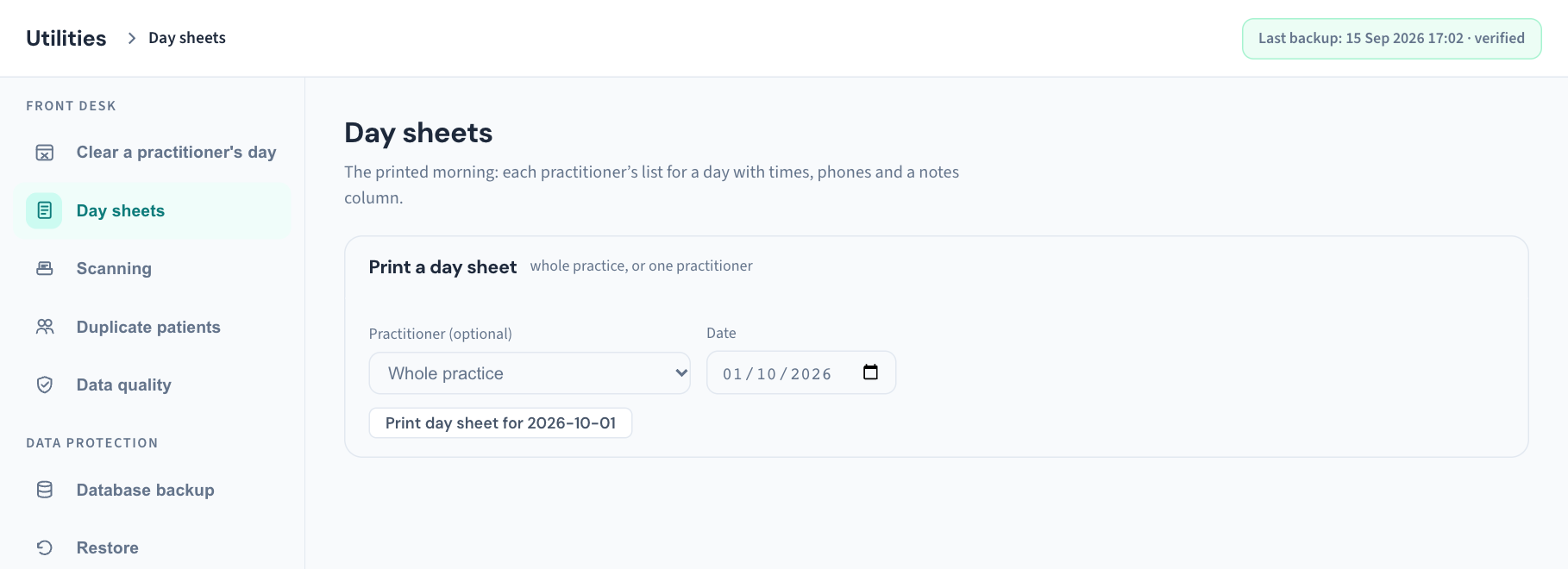
- In the Front desk group, choose Day sheets. The card is headed Print a day sheet.
- Under Practitioner (optional), leave Whole practice to print everyone, or choose one practitioner. Nurses who have their own clinics are in the list too.
- Under Date, choose the day. It starts on today.
- Press Print day sheet for followed by the date. The sheet opens in a new browser tab.
- Check it on screen, then press Print at the top right of the page. Your browser's print window opens; choose the printer and print.
Tip: The practitioner and date are shared with Clear a practitioner's day. If you have just been working in that section, check that Practitioner (optional) is not still set to one person before you print the whole practice.
What is on the sheet
The page is headed Day sheet with the day and date written out. Under it is one block per practitioner, in alphabetical order, each headed with the practitioner's name and how many appointments they have. Within a block the appointments run in time order.
| Column | What it shows |
|---|---|
| Time | The appointment's start time |
| Patient | Family name, then given name |
| Phone | The patient's mobile number, or their home number if there is no mobile. Blank if neither is on file |
| Type | The appointment type |
| Notes | Left empty, for writing on |
What is and is not included:
- Cancelled appointments and no-shows are left off. Everything else booked for the day is listed, including patients who have already arrived or been seen.
- A practitioner with no appointments that day does not get a block. The sheet only has blocks for people with bookings.
- If nobody has a booking, the sheet reads No appointments booked for this day.
- An appointment with no practitioner against it is listed under Unassigned.
What is recorded
A day sheet lists patients by name with their phone numbers, so Curaeon records it in the Audit log, in two steps:
- Opening the sheet is recorded as a report viewed, named Day sheet, with how many patients it listed.
- Printing it is recorded as Printed, Day sheet, with the day it was for and how many patients it listed. This is recorded whether you use the Print button or your browser's own print command.
Both are recorded against you. The print also appears in the history of each patient on the sheet, so a patient who asks who has seen their details gets a complete answer (KB-063 — Answer "who has seen my record?": print a patient access report). To look these entries up, see KB-101 — Find who did what in the Audit log: kinds, Sign-ins, Exactly, Who and a bookmarkable view.
Important: A printed day sheet is patient information on paper. Keep it behind the desk and out of sight of the waiting room, and put it in the confidential waste at the end of the day.
If that didn't work
- Nothing opens when I press the button. The sheet opens in a new tab. Check whether the browser opened it behind the current window, or blocked it.
- The sheet says "No appointments booked for this day." Check the date and whether a practitioner is still selected. A day with only cancelled bookings also prints empty.
- A patient is missing. The appointment was cancelled or marked as a no-show, was booked after you opened the sheet, or belongs to a practitioner you did not select. Reopen the sheet for the whole practice.
- A phone number is blank. There is no mobile or home number on the patient's record. Add one while they are at the desk (KB-081 — Fix data-quality gaps before they become rejected claims or lost letters).
- The page shows a red message instead of the sheet. The list could not be loaded, and Curaeon will not print an empty page that could be mistaken for a quiet day. Close the tab and try again. If it keeps happening, raise a ticket with the wording of the message.
- The print is cut off or too small. The sheet is laid out for A4. Paper size and scaling are set in your browser's print window, not in Curaeon.
Still stuck? Raise a ticket at support.curaeon.com.au or call 1300 XXX XXX. If your clinic can't see patients right now, call and choose option 1. Support is staffed Monday to Friday, 8:00–18:00 Sydney time; outside those hours a call or text to the same number is answered on a best-effort basis.
Related articles
- KB-133 — Find your way around Utilities: every section, what it is for and who can open it — Find your way around Utilities: every section, what it is for and who can open it
- KB-039 — Clear a practitioner's day when they call in sick — Clear a practitioner's day when they call in sick
- KB-038 — Book, reschedule and track appointments in the Calendar — Book, reschedule and track appointments in the Calendar
- KB-101 — Find who did what in the Audit log: kinds, Sign-ins, Exactly, Who and a bookmarkable view — Find who did what in the Audit log: kinds, Sign-ins, Exactly, Who and a bookmarkable view
- KB-063 — Answer "who has seen my record?": print a patient access report — Answer "who has seen my record?": print a patient access report
- KB-110 — Quick reference: reception — Quick reference: reception