Check that the server's disks are encrypted
Read what the practice server reports about encryption on the disks that hold your records, know what each answer means, and know who to tell when one is not encrypted.
Before you start
- You need to be a practice administrator.
- Disk encryption is mandatory on the practice server. Curaeon does not encrypt the database or the backup files itself: the disk they sit on is what protects them, and it is a condition of the practice's HI Service connection (KB-067 — Set up nightly backups, a second copy and a monthly restore drill).
- The screen reads. It cannot switch encryption on, and it shows no patient information, so a screenshot is safe to attach to a ticket.
Steps
- Open More in the menu bar, then choose Utilities.
- In the System group, choose Storage.
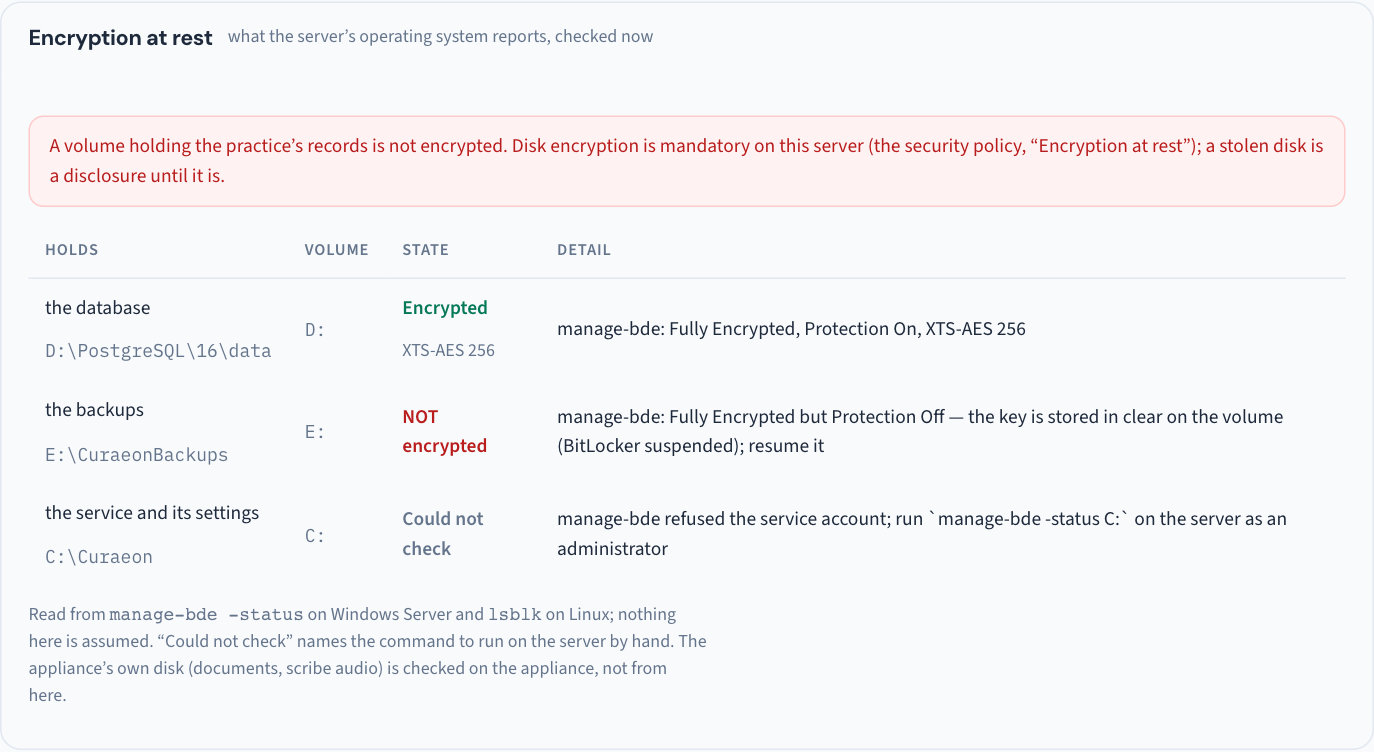
- Scroll to the card headed Encryption at rest. Its subtitle reads "what the server's operating system reports, checked now". It says Checking… for a moment.
- Read the State of every row.
The check runs each time you open the section. Reload the page to run it again.
What the rows are
Each row is a place on the server where the practice's records, or the key to them, are kept.
| Holds | What is there |
|---|---|
| the database | The practice database: every record |
| the backups | The server's backup folder |
| the backup custodian's vault | The protected copy of the backups. Shown only where the server has one |
| the service and its settings | The folder the server program runs from. Its settings file holds the server's encryption key |
Under each name is the folder that was checked. Volume is the drive or device that folder is on, as the operating system names it.
What each state means
| State | What it means | What to do |
|---|---|---|
| Encrypted | The operating system says the volume is encrypted and protected. The method may be shown underneath | Nothing |
| NOT encrypted | The operating system says it is not. A red warning appears above the table: "A volume holding the practice's records is not encrypted." | Tell whoever runs your server today. See below |
| Could not check | The server could not get an answer. This is not a pass and not a fail. The Detail column says why, and names the command to run on the server by hand | Give the detail to whoever runs your server and ask them to run it |
Read the Detail column
The detail is what the operating system's own tool said. The common ones:
| Detail says | Meaning |
|---|---|
| "Fully Encrypted, Protection On" | Windows BitLocker is on and protecting the drive |
| "Fully Encrypted but Protection Off" | BitLocker is suspended. The key is stored unprotected on the drive, so Curaeon reports NOT encrypted. It needs resuming |
| "Fully Decrypted" | BitLocker is not on for that drive |
| "not fully encrypted yet" | Encryption is part-way through |
| "over the dm-crypt device" | A Linux server's disk is encrypted |
| "no dm-crypt layer is under it" | A Linux server's disk is not encrypted |
| "manage-bde refused the service account" | Windows would not answer the server program. The detail gives the command for an administrator to run at the server |
| "manage-bde is not on this server" | BitLocker is not installed |
| "the database is on another host" | The database runs on a different machine, which this server cannot check. Check that machine there |
| "not a local drive letter" or "not a local block device" | The folder is on a network share. This server cannot check someone else's disk |
What the screen cannot tell you
- The appliance's disk. Patient documents and scribe audio are kept on the appliance, which is checked on the appliance, not from here. Ask whoever installed it.
- Other copies of your backups. A NAS, a rotated drive and the off-site copy each need to be encrypted too, and nothing here looks at them (KB-067 — Set up nightly backups, a second copy and a monthly restore drill).
- Workstations. The computers staff use are not checked.
- Who holds the recovery key. The screen says whether a disk is encrypted, not whether the key that unlocks it after a failure is stored safely off the server. Ask whoever runs the server where it is kept.
- History. There is no record of earlier checks. The answer is for the moment you opened the section.
- The standalone console. This card is in the main app only. The console at
http://<practice-server>:8080/admindoes not show it (KB-068 — Use the standalone admin console when the main app won't load).
If a disk is not encrypted
- Tell whoever runs your server today, and send them the Holds, Volume and Detail of each row that is not Encrypted. Encryption is switched on at the server, in the operating system, not in Curaeon.
- Raise a ticket with Curaeon Support with a screenshot of the card. Encryption is checked when a server is installed, so a server that now reports otherwise is worth a ticket.
- Until it is fixed, treat the server as you would any unencrypted device holding patient records: a stolen or discarded disk would be a disclosure. If a disk or the server has already left the practice's control, see KB-065 — Assess a possible data breach: the 30-day NDB and 12-hour Services Australia clocks.
- When the fix is in, open Utilities → Storage again and confirm every row reads Encrypted.
Tip: Look at this card once a month, when you note the storage figures on the same screen (KB-138 — Read Utilities → Storage and Clinical datasets: how big the database is, and which reference data is loaded). The weekly Security review does not include it, so signing the review says nothing about the disks (KB-064 — Sign off the weekly Security review, and act on alerts and audit-log check warnings). If your practice tracks information-security evidence in Settings → Accreditation, note the date you checked in that item's Reference / note box: the register does not read this screen (KB-130 — Keep the practice's compliance register in Settings → Accreditation: tiers, statuses and expiry dates).
If that didn't work
| What you see | What to do |
|---|---|
| Disk encryption could not be checked. | The card could not load. Reload. If it repeats, raise a ticket |
| "the operations manager is not configured on this server" | The server was started without its operations component. Tell whoever runs the server |
| Storage is not in Utilities | You are not a practice administrator (KB-133 — Find your way around Utilities: every section, what it is for and who can open it) |
Still stuck? Raise a ticket at support.curaeon.com.au or call 1300 XXX XXX. If your clinic can't see patients right now, call and choose option 1. Support is staffed Monday to Friday, 8:00–18:00 Sydney time; outside those hours a call or text to the same number is answered on a best-effort basis.
Related articles
- KB-064 — Sign off the weekly Security review, and act on alerts and audit-log check warnings — Sign off the weekly Security review, and act on alerts and audit-log check warnings
- KB-130 — Keep the practice's compliance register in Settings → Accreditation: tiers, statuses and expiry dates — Keep the practice's compliance register in Settings → Accreditation: tiers, statuses and expiry dates
- KB-138 — Read Utilities → Storage and Clinical datasets: how big the database is, and which reference data is loaded — Read Utilities → Storage and Clinical datasets: how big the database is, and which reference data is loaded
- KB-067 — Set up nightly backups, a second copy and a monthly restore drill — Set up nightly backups, a second copy and a monthly restore drill
- KB-065 — Assess a possible data breach: the 30-day NDB and 12-hour Services Australia clocks — Assess a possible data breach: the 30-day NDB and 12-hour Services Australia clocks