Keep the practice's compliance register in Settings → Accreditation: tiers, statuses and expiry dates
Record where your practice stands against every accreditation, registration, licence and credential it may need, with expiry dates, so that one screen answers "what do we hold, what is outstanding and what is about to lapse?"
What this screen is, and what it is not
It is the practice's own register: a fixed list of 153 items an Australian medical practice may be required or may choose to hold, grouped into nine tiers, against which you record your status, an expiry date and a note.
It is not a connection to any outside body. Nothing here is checked with AHPRA, Services Australia, your accrediting agency, an insurer or anyone else. If you mark an item Held, Curaeon takes your word for it. The screen says the same at its foot:
This register is a compliance planning aid, not legal or regulatory advice. Requirements vary by jurisdiction, practice type and service mix, and change frequently. Confirm current obligations with the relevant regulator, your accrediting agency and your medical indemnity insurer before relying on this document.
Three more limits worth knowing before you rely on it:
- The list is fixed. You cannot add, rename or remove an item. Where one does not apply to you, mark it N/A.
- It does not read the rest of Curaeon. It does not pick up a provider number from Settings → Users, or the NASH certificate's expiry from Settings → HI Service. What you enter here is what it knows.
- It does not send reminders. The screen counts items expiring within 60 days when you open it. Nothing is emailed, and nothing appears on the dashboard. Put a look at this screen in your monthly routine.
The register's wording is dated on the screen (under the title). Requirements change; treat the date as the day the list was last revised, not a guarantee that it is current.
Before you start
- Who can open it. Practice administrators only (the practice.admin permission, KB-034 — Choose the right role and permissions for a new staff member). Anyone else sees Practice manager access only.
- Where it is. Settings → Accreditation, in the Operations & governance group.
- Have ready. Your certificates, policy schedules and registration letters, for their reference numbers and expiry dates. The first pass through all nine tiers is an afternoon's work; after that it is a few minutes a month.
What the screen shows
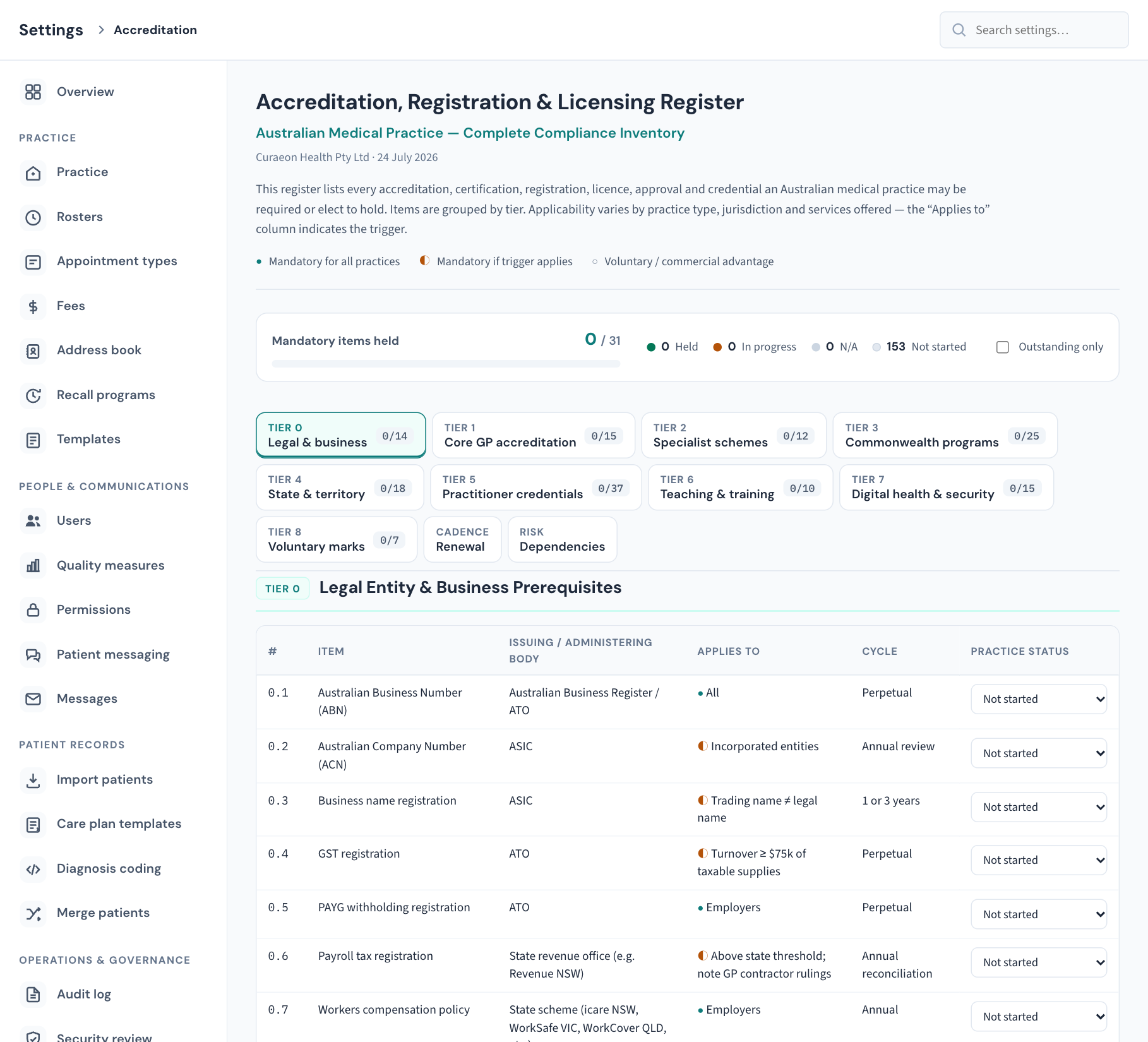
The header
The title Accreditation, Registration & Licensing Register, who wrote the list and when, a paragraph on its scope, and the legend for the three symbols used in the tables:
| Symbol | Meaning |
|---|---|
| ● | Mandatory for all practices |
| ◐ | Mandatory if trigger applies. The Applies to column says what the trigger is, for example "Incorporated entities". |
| ○ | Voluntary / commercial advantage |
The progress strip
- Mandatory items held, as a figure and a bar. This counts only the ● items: 31 of the 153. An item marked ◐ is not counted here even when its trigger applies to you, so a full bar does not mean everything you need is held.
- A count of items at each status: Held, In progress, N/A, Not started.
- Expiring ≤60d, shown only when there is something to show: items you have marked Held whose expiry date is within the next 60 days or has already passed.
- Outstanding only, a tick box that hides every row already Held or N/A, leaving what still needs work. A section with nothing left says All items in this section are held or not applicable.
The tabs
One tab per tier, then two reference tabs. Each tier tab carries a badge of held over total, for example 3/14; the badge changes colour when every item in the tier is either Held or N/A.
| Tab | Covers | Items |
|---|---|---|
| Tier 0 — Legal & business | ABN, company and tax registrations, workers compensation, insurance, premises approvals | 14 |
| Tier 1 — Core GP accreditation | The National General Practice Accreditation Scheme, the RACGP standards modules, the rural college pathway | 15 |
| Tier 2 — Specialist schemes | Setting-specific and specialist accreditation schemes | 12 |
| Tier 3 — Commonwealth programs | PRODA, Medicare and other Commonwealth health program registrations | 25 |
| Tier 4 — State & territory | State and territory licences, authorities and registrations | 18 |
| Tier 5 — Practitioner credentials | AHPRA registration, college credentials and service-specific accreditations for each clinician | 37 |
| Tier 6 — Teaching & training | Teaching, training and placement accreditation | 10 |
| Tier 7 — Digital health & security | Digital health, information security and software conformance | 15 |
| Tier 8 — Voluntary marks | Voluntary and reputational marks | 7 |
| Cadence — Renewal | A summary of what renews annually, quarterly, three-yearly, five-yearly and on an event. Reference only. | none |
| Risk — Dependencies | The critical dependencies and common failure points, for example that losing practice accreditation removes several incentive payments at once. Reference only. | none |
Within a tier, each numbered row gives the item, the body that issues or administers it, who it applies to and, in some tiers, its renewal cycle. The last column, Practice status, is yours. Some tiers also carry reference blocks with no status to set, such as the list of approved accrediting agencies in Tier 1.
Note: In Tier 1 the column headed Status describes the standard itself ("Mandatory", "Separate accreditation"). Your practice's position is always the Practice status column at the end of the row.
Tier 7 has a Held by column: Vendor, Clinic or Both. Vendor items are Curaeon's to hold, not yours, and several are still in progress. Do not mark a vendor item Held on the strength of the register listing it; for what is and is not connected today see KB-058 — What Curaeon connects to Services Australia today (AIR, IHI, PBS authorities, Medicare, MyMedicare), and the manual workaround for each, and ask us on a ticket if an accreditor needs it in writing.
Record where the practice stands on an item
Every item starts as Not started. There is no Save button: each change is saved as you make it.
- Open the tier's tab and find the row by its number.
- In Practice status, choose from the list:
| Status | Use it when |
|---|---|
| Not started | Nothing has been done, or you have not yet looked at the item. |
| In progress | Applied for, being renewed, or being assessed. |
| Held | The practice holds it and it is current. |
| N/A | It does not apply to this practice. |
- For Held or In progress, two more fields appear under the status:
- a date: the expiry or renewal date. Choosing a date saves it.
- Reference / note: a certificate or policy number, the name of the insurer or agency, where the document is filed, or what you are waiting on. Up to 1,000 characters. The note is saved when you click or tab out of the field.
- Move to the next row.
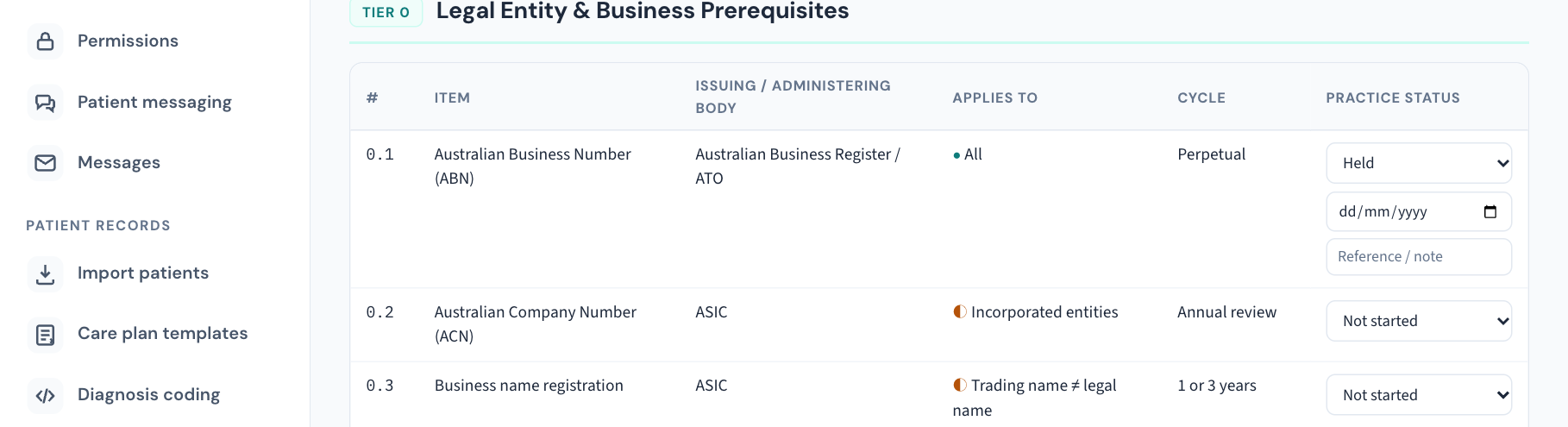
If a change cannot be saved, an error message appears and the row returns to what it was before.
Tip: Work one tier at a time with Outstanding only ticked. The rows disappear as you settle them, and the tab's badge fills in.
Update an item
Change the status, the date or the note in place, exactly as above. Typical updates:
- A renewal comes through. Leave the status at Held, change the date to the new expiry, and update the reference number in the note.
- Something lapses. Change Held back to In progress or Not started. Do not leave it at Held with a past date.
- Circumstances change. A new service line or a new site can turn an N/A into something you must hold. The Renewal tab's "Event-driven" row lists the usual triggers.
Each status applies to the whole practice. Tier 5 lists practitioner credentials, but there is one status per credential, not one per clinician: mark it Held only when every clinician it applies to holds it, set the date to the earliest expiry among them, and name whose it is in the note. Per-person identifiers themselves live on each staff account in Settings → Users (KB-120 — Manage staff accounts in Settings → Users: add, change a role, seats, provider numbers, deactivate).
Find what is about to expire
- Open Settings → Accreditation and look for Expiring ≤60d in the progress strip. If it is not there, no Held item has an expiry date inside 60 days.
- If it is there, the number tells you how many, but the screen does not list them or highlight their rows. Go through the tabs and check the dates on Held items.
Two things the count leaves out: items with no date entered, and items marked In progress. An item is only watched if it is Held and has a date.
What is recorded
Every change is written to the Audit log as Accreditation item updated, under Practice settings, with who made it and the old and new status, date and note (KB-101 — Find who did what in the Audit log: kinds, Sign-ins, Exactly, Who and a bookmarkable view). So if an item moves from Held back to In progress, the log still shows who marked it held and when. The screen itself shows only the current state.
The screen has no print or export button. To show an accreditor, use the browser's own print, or the Audit log for the history.
If that didn't work
- "The register could not be loaded". The saved statuses could not be read, so the screen shows this message and no register, never a register with every item at Not started. Choose Try again. If it keeps failing, raise a ticket.
- The date and note fields are missing. They appear only for Held and In progress.
- A note did not save. It saves when you leave the field. Click elsewhere on the page before moving to another tab.
- Expiring ≤60d does not appear, but something is due. Check the item is Held and has a date.
- An item you need is not in the list, or the list is out of date for your state. The list cannot be edited from the screen. Tell us on a ticket; in the meantime, record it in the note of the nearest item.
Still stuck? Raise a ticket at support.curaeon.com.au or call 1300 XXX XXX. If your clinic can't see patients right now, call and choose option 1. Support is staffed Monday to Friday, 8:00–18:00 Sydney time; outside those hours a call or text to the same number is answered on a best-effort basis.
Related articles
- KB-115 — Find your way around Settings: every section, who can open it, and where to read more — Find your way around Settings: every section, who can open it, and where to read more
- KB-020 — NASH certificates — why they matter and how renewal works — NASH certificates — why they matter and how renewal works
- KB-058 — What Curaeon connects to Services Australia today (AIR, IHI, PBS authorities, Medicare, MyMedicare), and the manual workaround for each — What Curaeon connects to Services Australia today (AIR, IHI, PBS authorities, Medicare, MyMedicare), and the manual workaround for each
- KB-064 — Sign off the weekly Security review, and act on alerts and audit-log check warnings — Sign off the weekly Security review, and act on alerts and audit-log check warnings
- KB-083 — Practice-manager setup checklist: everything to configure before your first consulting day — Practice-manager setup checklist: everything to configure before your first consulting day
- KB-100 — Keep the audit log for accreditation: the yearly archive, the copies beside the backups, and removing months past the period — Keep the audit log for accreditation: the yearly archive, the copies beside the backups, and removing months past the period
- KB-101 — Find who did what in the Audit log: kinds, Sign-ins, Exactly, Who and a bookmarkable view — Find who did what in the Audit log: kinds, Sign-ins, Exactly, Who and a bookmarkable view
- KB-120 — Manage staff accounts in Settings → Users: add, change a role, seats, provider numbers, deactivate — Manage staff accounts in Settings → Users: add, change a role, seats, provider numbers, deactivate