Book and hold a phone or video consult
Book an appointment as in person, video or phone, so the patient is told how it will happen and the consult opens the same way, and call the patient from a phone consult.
Before you start
- Every appointment and every consult says how it is held: In person, Video or Phone. In person is the default.
- How it is held is a statement for the record. It does not choose an MBS item, and nothing reads it to suggest one (KB-056 — Why the scribe never writes the Assessment or suggests item numbers). It is not a billing input.
- Curaeon does not run the call. It has no video product of its own and connects to none. Use the practice's own video service. For a phone consult, Curaeon offers the patient's numbers as links that your computer's own calling app dials, if one is set up.
- Anyone who works the Calendar can set how a booking is held. Changing how a consult is held needs permission to write consult notes (
notes.write): clinicians and administrators, with the standard roles (KB-034 — Choose the right role and permissions for a new staff member).
How the mode travels
- The appointment type has a default, shown as Held in Settings → Appointment types (KB-117 — Add, change, reorder and retire appointment types in Settings → Appointment types). Every type is In person until an administrator changes it.
- The booking starts from its type's mode. Reception can change it, until the consult starts.
- The consult starts in the booking's mode. The clinician can change it while the consult is in progress.
An online booking request takes its appointment type's mode when it is confirmed. The public booking page does not ask the patient how they want it held, but it does tell them, before they choose the type (see "What the patient is told" below). A walk-in consult, started without a booking, starts in person.
Book a phone or video appointment
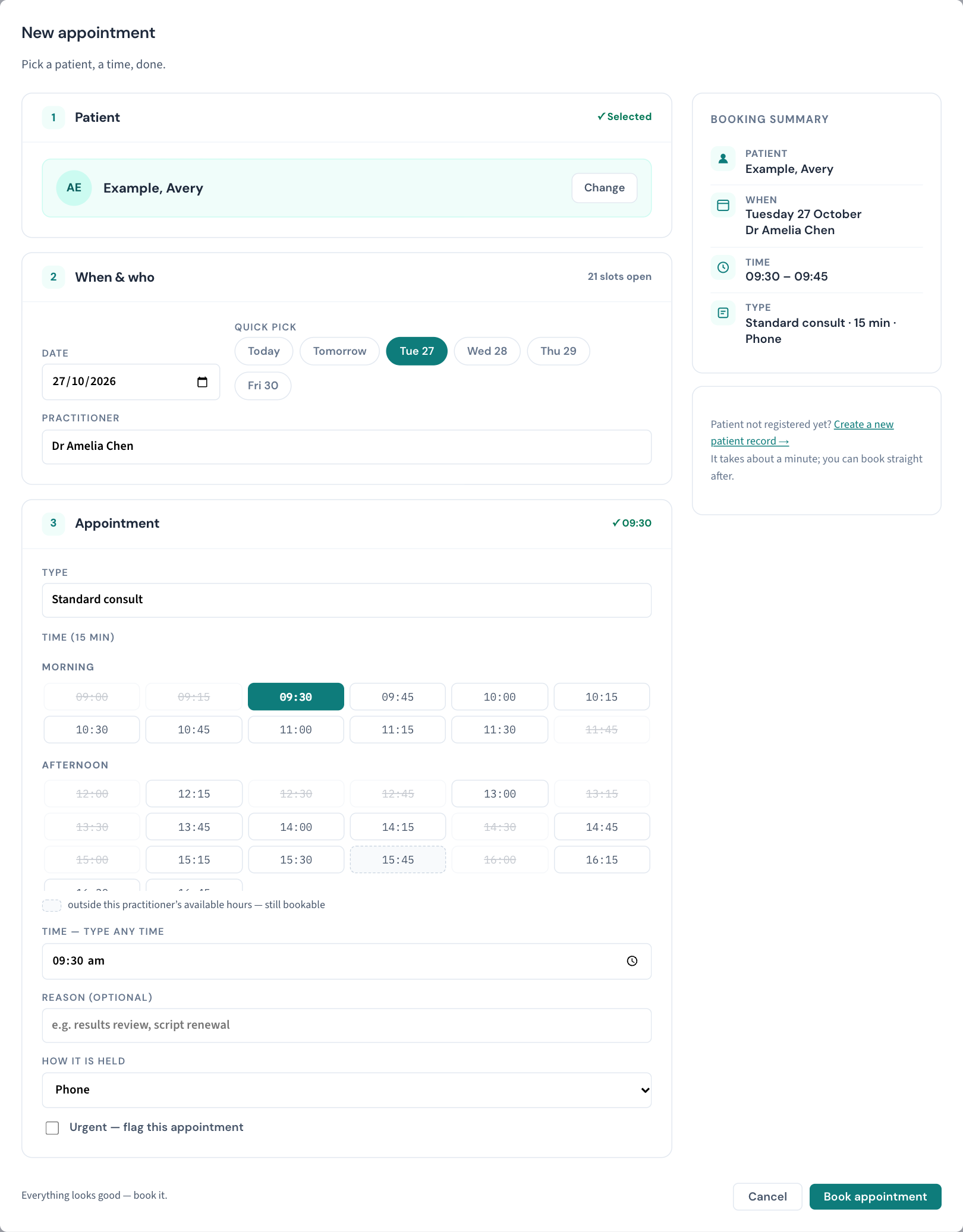
- On the Calendar, choose + New appointment.
- Choose the patient, the practitioner and the Appointment type. How it is held changes to that type's mode.
- Under How it is held, choose In person, Video or Phone, if this booking differs from its type. What you pick stands, unless you then choose a different type, which sets the mode again.
- Check the summary on the right. The Type line ends with · Phone or · Video for a booking that is not in person.
- Choose Book appointment.
On the Calendar, a phone or video booking shows Phone · or Video · before the patient's name. An in-person booking shows nothing extra.
Change how a booking is held
- Select the appointment on the Calendar to open its panel.
- Beside the status badge, pick In person, Video or Phone from the list.
It saves straight away, and a message confirms it, for example "… — phone appointment." The appointment's history, under the panel's buttons, reads Mode changed to phone with your name.
The list is there while the appointment is Booked, Confirmed or Arrived. Once the consult has started, how it is held is the consult's to say, and the panel shows Phone or Video as a plain badge.
What the patient is told
On the online booking page, a type held by phone or video says so on its own line under its name and duration, before the patient chooses it (KB-040 — Set up rosters, leave and online-bookable appointment types, and handle online booking requests):
| Type held | The booking page says |
|---|---|
| Phone | "By phone — the practice will call you" |
| Video | "By video — not at the practice" |
| In person | Nothing extra |
The same words are in the booking summary once the type is chosen, and as Where on the review screen and on the screen after the request is sent. For an in-person type, that last screen gives the practice's address as Where, as before.
In messages, a confirmation or a reminder for a phone or video booking ends with one extra sentence, after your practice's own wording:
| Booking | The message ends |
|---|---|
| Phone | "This is a phone appointment: the practice will call you." |
| Video | "This is a video appointment, not at the practice." |
| In person | Nothing is added |
- The sentence is added to every confirmation and reminder, so a practice's own message wording cannot leave it out (KB-122 — Set up Settings → Patient messaging: email, SMS and WhatsApp channels, DKIM, the bounce mailbox and message wording).
- A reminder says how the booking is held when the reminder is sent. A booking changed to video after it was made is reminded as video.
- Cancellation, no-show and thank-you messages are unchanged.
- WhatsApp messages use the templates Meta approved, and do not carry the sentence (KB-140 — Arrange WhatsApp with Meta: the account, the number and the message templates Curaeon needs before it can send).
Note: The sentence tells the patient how. It does not tell them where to join a video call. Send that link from your video service, as you do today.
Hold the consult
The consult's toolbar shows how it is held, beside the patient's name.
- While the consult is in progress, pick In person, Video or Phone from the list in the toolbar. It saves straight away.
- Phone: buttons appear beside it, Call mobile and Call home, each with the number on the patient's record. Choose one and your computer's calling app dials it. With no number on the record, it says "No phone number on the record."
- Video: a note says "The scribe hears the room, not your headset."

Once the consult is finished, or for someone who may not write notes, how it was held is shown as a plain badge and cannot be changed. How a finished consult was held is part of what was signed.
A consult held as a home visit, in aged care or after hours, if the consult was set that way, shows that name instead.
The scribe on a video or phone consult
The scribe records this computer's microphone, nothing else. On a video or phone call with a headset, the scribe hears you and not the patient. Use the computer's speakers, or dictate instead (KB-055 — Dictate into a section, refine a draft, and manage style memory and suggested follow-ups).
When you record the patient's scribe consent, Curaeon records how it was asked: over video on a video consult, by phone on a phone consult, in person otherwise. If the patient withdraws consent during the consult, the withdrawal is recorded the same way. Curaeon reads how the consult is held at that moment, so set it in the toolbar first (KB-015 — AI scribe consent workflow explained).
Where it shows up later
- Reports → Practice performance: the Telehealth share counts consults by how they were held (KB-163 — Read the Reports screen: My dashboard, Performance and the Billing & claims summary). Consults held before this change all count as in person.
- Billing: when a telehealth item is added to an invoice, Curaeon may warn that the patient needs a face-to-face service at this practice in the last 12 months. A patient recorded as registered in MyMedicare with the practice is exempt (KB-176 — Record a patient's MyMedicare registration, and what reads it, KB-177 — Why an item is warned about or refused on an invoice: MBS co-claiming rules and the bulk billing incentive).
If that didn't work
- There is no How it is held list on an appointment. The consult has started. Change it on the consult instead.
- The list on the consult is a grey badge. The consult is finished, or your role does not write notes.
- Call mobile does nothing. Your computer has no calling app set up for phone links. Dial the number shown.
- Every new booking of a type starts as Phone or Video. That is the type's default. An administrator changes Held in Settings → Appointment types (KB-117 — Add, change, reorder and retire appointment types in Settings → Appointment types).
- A patient came in for what was booked as a phone appointment. Change the booking to In person before the consult starts, or the consult once it has.
Still stuck? Raise a ticket at support.curaeon.com.au or call 1300 XXX XXX. If your clinic can't see patients right now, call and choose option 1. Support is staffed Monday to Friday, 8:00–18:00 Sydney time; outside those hours a call or text to the same number is answered on a best-effort basis.
Related articles
- KB-038 — Book, reschedule and track appointments in the Calendar — Book, reschedule and track appointments in the Calendar
- KB-117 — Add, change, reorder and retire appointment types in Settings → Appointment types — Add, change, reorder and retire appointment types in Settings → Appointment types
- KB-015 — AI scribe consent workflow explained — AI scribe consent workflow explained
- KB-176 — Record a patient's MyMedicare registration, and what reads it — Record a patient's MyMedicare registration, and what reads it
- KB-177 — Why an item is warned about or refused on an invoice: MBS co-claiming rules and the bulk billing incentive — Why an item is warned about or refused on an invoice: MBS co-claiming rules and the bulk billing incentive
- KB-122 — Set up Settings → Patient messaging: email, SMS and WhatsApp channels, DKIM, the bounce mailbox and message wording — Set up Settings → Patient messaging: email, SMS and WhatsApp channels, DKIM, the bounce mailbox and message wording