Tidy the database from Utilities → Data clean-up: reclaim space, rebuild search, and find dormant records and forgotten scans
Four housekeeping tools on one card. Two tidy the database and change no record. Two are lists that show you what needs a person's attention. None of them deletes anything.
Before you start
- You need to be a practice administrator. Open the sidebar's Admin group, choose Utilities, then Data clean-up in the Data management group.
- Run the two database tools outside clinic hours. Both are safe with the practice open, but they add work to the server while they run.
- Only one tool runs at a time. While one is running, all four buttons are unavailable.
What is on the screen
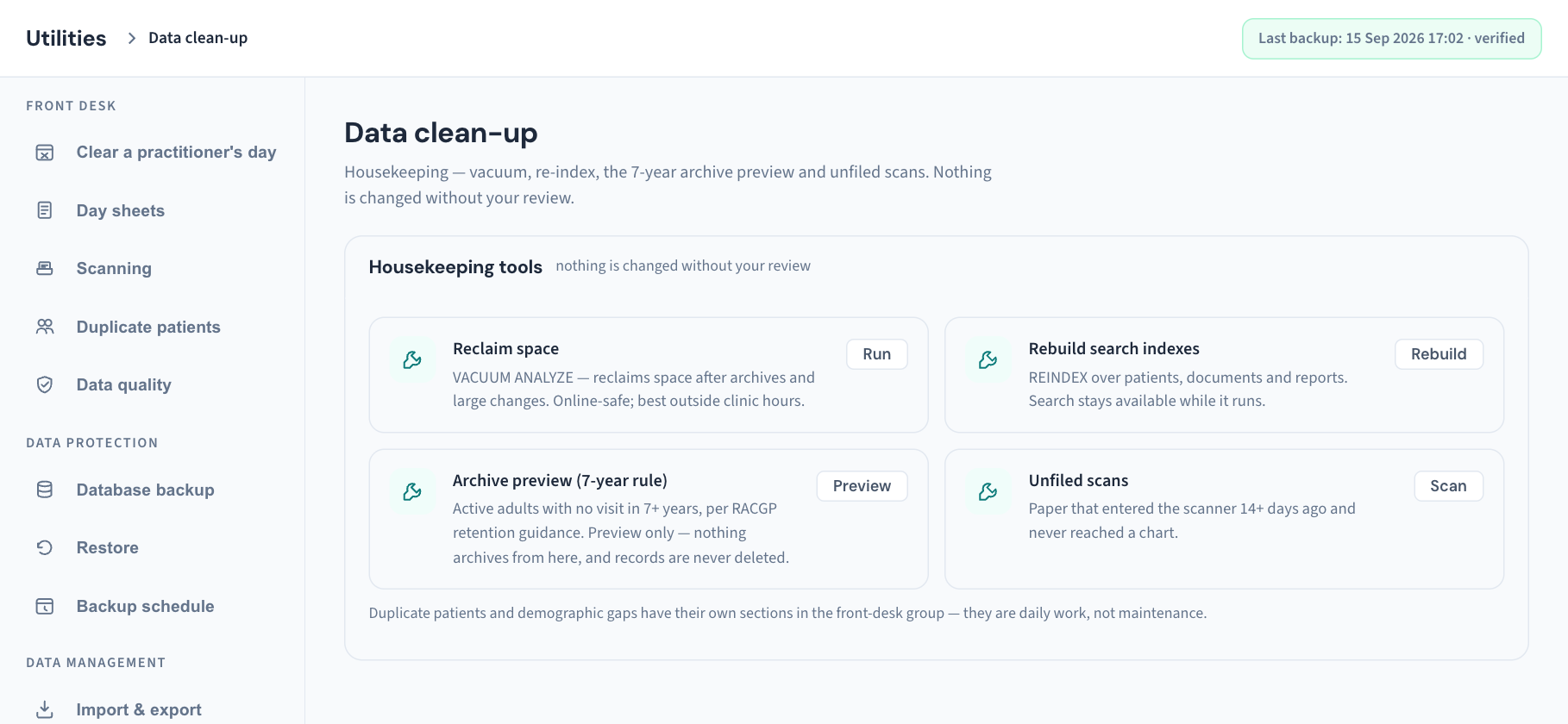
One card, Housekeeping tools, with the line "nothing is changed without your review".
| Tool | Button | What it does | Changes patient records? |
|---|---|---|---|
| Reclaim space | Run | Tidies the database and frees space left behind by large changes | No |
| Rebuild search indexes | Rebuild | Rebuilds the indexes behind patient, document and report search | No |
| Archive preview (7-year rule) | Preview | Lists active adults not seen for seven years or more | No. It is a list only |
| Unfiled scans | Scan | Lists scanned pages that have waited 14 days or more without being filed | No. It is a list only |
Under the tools the card notes that duplicate patients and demographic gaps have their own sections in the Front desk group, because "they are daily work, not maintenance" (KB-042 — Find and merge duplicate patient records, KB-081 — Fix data-quality gaps before they become rejected claims or lost letters).
Reclaim space
Use it after a large change, such as a big import, when you want the space back and searches kept quick.
- Choose Run beside Reclaim space. The button reads Running….
- Wait. On a large database this can take a while; leave the page open.
- When it finishes, the result appears under the tool, for example "reclaimed 12 MB" with how long it took, and a message confirms it.
A result of "reclaimed 0 MB" is normal on a database that is already tidy. The run is recorded in the Audit log as Database tidied (vacuum), with who ran it.
Rebuild search indexes
Use it if patient or document search has become slow, or when Support asks you to.
- Choose Rebuild beside Rebuild search indexes.
- Wait. Search stays available while it runs.
- The result reads "patients, documents and diagnostic reports re-indexed", with how long it took.
It is recorded in the Audit log as Database indexes rebuilt.
Note: The results under these two tools are only shown while you stay on the section. The Audit log keeps the record that the tool was run.
Preview archive candidates under the 7-year rule
This list answers one question: which active adult patients has the practice not seen for seven years? In the screen's words it is "Preview only — nothing archives from here, and records are never deleted."
- Choose Preview beside Archive preview (7-year rule).
- Read the heading that appears, for example "14 archive candidates", and the list beneath it. Each line is a patient's name and "last visit" with the date, or "last visit never".
- Choose a name to open that patient's record and decide what, if anything, to do.
Who is on the list:
- patients who are active: not marked as having left the practice, and not deceased;
- adults: born more than 25 years ago, or with no date of birth recorded. Children are left out on purpose, because a child's record is kept until they turn 25 and a list that flagged them would invite the wrong decision;
- whose last visit was more than seven years ago. A patient who has never had a visit appears only when their record was itself created more than seven years ago, so a patient registered last month is not listed.
The list shows up to 200 patients, those with no visit first, then the longest unseen.
What to do with a name on it:
| You decide | Do this |
|---|---|
| The patient has left the practice | Mark them as departed from their record (KB-041 — Find a departed patient, reactivate them, or record a death or departure) |
| The record may be past its retention period | Work it in Settings → Records retention (KB-066 — Keep, hold or destroy patient records past retention) |
| The patient is still yours | Nothing. They stay active |
Important: This preview is not the retention list. It looks only at visits. Settings → Records retention works out each record's date from every kind of health service, including scripts, results, documents and invoices, and checks for legal holds and money owing. Only that screen can destroy a record, and only with an administrator's password (KB-066 — Keep, hold or destroy patient records past retention).
If the list is empty the screen says "Nobody qualifies — every active adult has been seen within seven years."
The list shows patient names. Opening a record from it is recorded as a chart access like any other.
Find scans unfiled for a fortnight
A page that has sat in the scanning tray for two weeks is a letter no doctor has seen. This tool finds them.
- Choose Scan beside Unfiled scans.
- Read the heading, for example "3 unfiled scans", and the list. Each line is the file's name and "waiting 21 days".
- Choose a file name. It opens Utilities → Scanning, where the page is filed to its patient (KB-047 — Scan and file paper letters, including the appliance's pre-filled suggestions).
The list shows up to 100 pages, oldest first. If there are none it says "Nothing has waited more than two weeks. The live queue is under Scanning."
A page uploaded by mistake is never deleted, so it will keep appearing here. That is expected (KB-047 — Scan and file paper letters, including the appliance's pre-filled suggestions).
What each result means
| What you see | Meaning |
|---|---|
| Running… on a button, the others greyed | A tool is working. Wait for it |
| "reclaimed … MB in …" | Reclaim space finished |
| "patients, documents and diagnostic reports re-indexed in …" | The rebuild finished |
| "the maintenance action failed — nothing is left half-done; see the server log" | The tool stopped. No record was affected |
| "… archive candidates" or "… unfiled scans" with a list | The preview ran |
| The button returns to normal but no heading or list appears | The list could not be loaded. The screen does not say so |
If that didn't work
- A tool failed. Try once more outside clinic hours. If it fails again, tell whoever runs your server; the reason is in the server's log, not on the screen.
- A preview shows nothing at all, not even a "0" heading. Choose the button again. If it repeats, raise a ticket.
- Data clean-up is not in the list. You are not signed in as a practice administrator (KB-034 — Choose the right role and permissions for a new staff member).
- You wanted more disk space than Reclaim space freed. See what is using it in Utilities → Storage (KB-138 — Read Utilities → Storage and Clinical datasets: how big the database is, and which reference data is loaded). Backups are pruned by the backup schedule, not here (KB-139 — A tour of Utilities → Database backup, Restore and Backup schedule: every control and status).
The screen does not say how long either database tool will take, and it has no schedule: each runs only when you press the button.
Still stuck? Raise a ticket at support.curaeon.com.au or call 1300 XXX XXX. If your clinic can't see patients right now, call and choose option 1. Support is staffed Monday to Friday, 8:00–18:00 Sydney time; outside those hours a call or text to the same number is answered on a best-effort basis.
Related articles
- KB-133 — Find your way around Utilities: every section, what it is for and who can open it — Find your way around Utilities: every section, what it is for and who can open it
- KB-066 — Keep, hold or destroy patient records past retention — Keep, hold or destroy patient records past retention
- KB-047 — Scan and file paper letters, including the appliance's pre-filled suggestions — Scan and file paper letters, including the appliance's pre-filled suggestions
- KB-041 — Find a departed patient, reactivate them, or record a death or departure — Find a departed patient, reactivate them, or record a death or departure
- KB-138 — Read Utilities → Storage and Clinical datasets: how big the database is, and which reference data is loaded — Read Utilities → Storage and Clinical datasets: how big the database is, and which reference data is loaded
- KB-139 — A tour of Utilities → Database backup, Restore and Backup schedule: every control and status — A tour of Utilities → Database backup, Restore and Backup schedule: every control and status