Find your way around Curaeon: the menu bar, More and your account menu
Know where every screen is now that the sidebar has gone, what the counts in the menu bar mean, and where Settings, Utilities, Preferences, Help and Sign out have moved to.
What changed
The sidebar down the left of every screen has gone. In its place is one menu bar across the top. It holds the same links as the sidebar did, and each link is still shown only to the roles that may use it. Some links now sit under More, and your name at the right opens a small account menu.
Settings keeps its own list of sections down the left, and so does Utilities. Those are part of the screen, not the app's menu.

The menu bar, left to right
| Part | What it is |
|---|---|
| Today, Calendar, Patients, Inbox, Investigations, Recalls, Billing, Reports | The day's work. Every role sees all eight. |
| Security alerts | Administrators only, and only while a security alert is waiting to be acknowledged. The number is how many. It opens Settings → Security review (KB-064 — Sign off the weekly Security review, and act on alerts and audit-log check warnings). |
| Messages | Staff messages. The number is how many are unread. |
| More | The rest of the screens your role can open. See the next section. |
| Search patients | A way to the Patients screen's search from anywhere. It is not a second search box: choosing it opens Patients, where you type. From the keyboard, Ctrl+K does the same and puts the cursor in the box. |
| Your name | Opens the account menu: Preferences, Help and Sign out. Under your name it says Signed in. |
The link for the screen you are on is highlighted. A link that covers two or three screens stays highlighted on all of them. For example, Investigations is lit on both the Lab feed and Requests tabs, and Recalls on Recalls, Failed reminders and Message wording.
The menu bar from the keyboard
With keyboard shortcuts on in Preferences (KB-131 — Set up Preferences: your start screen, calendar view, colours, notifications and privacy), four keys press a link in the menu bar for you. On a Mac, ⌘ works in place of Ctrl.
| Key | Presses | Where it works |
|---|---|---|
| Ctrl+K | Search patients, and puts the cursor in the search box | Every workspace screen except inside a consult, and while you are typing in a field too |
| G | Today | Only on Today, Patients, Calendar, Inbox, Billing, Recalls and Reports, and never while you are typing in a field |
| I | Inbox | The same seven screens |
| N | Calendar | The same seven screens |
A key goes where its link goes, and nothing more. Ctrl+K leaves the screen as a click on Search patients does: what you had typed there and not saved is kept or lost exactly as that click would keep or lose it, and a Settings form with unsaved changes still asks before you leave. None of the four works inside a consult, where leaving would end a recording. None works while a window is open over the screen, or on a letter or printout that opens as a page of its own.
What is under More
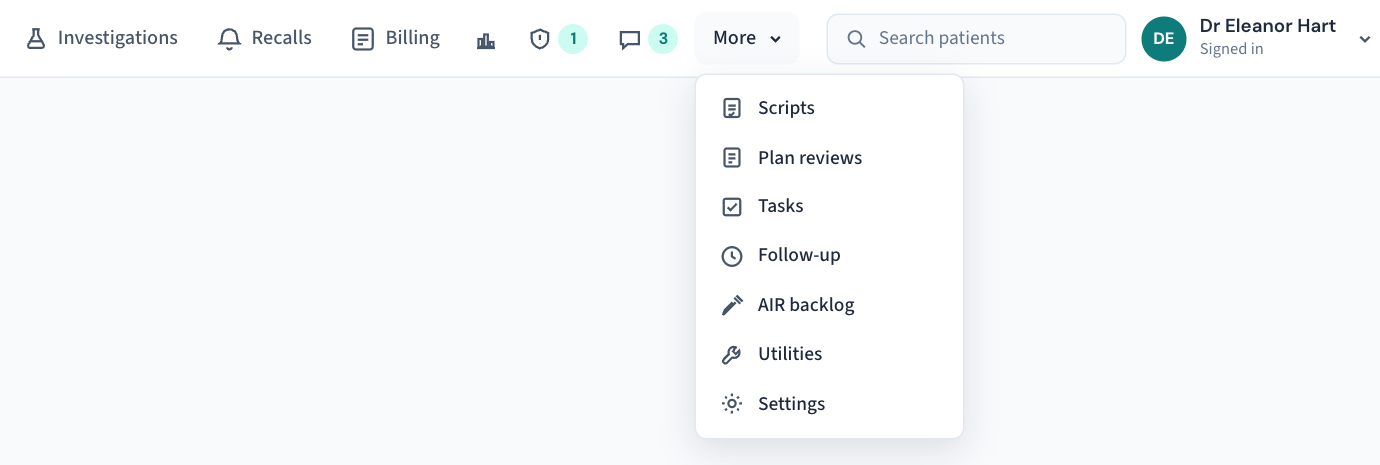
Choose More to open the list. Choose a screen to go there. The list closes when you choose a screen, press Esc, or click anywhere else.
| In More | What it opens | Who sees it with the standard roles |
|---|---|---|
| Scripts | Owing scripts and Unfilled scripts, as two tabs (KB-044 — Record and settle an owing script, KB-153 — Follow up scripts that were never filled: the Unfilled scripts list) | Admin, Clinician |
| Plan reviews | Care plan reviews: active plans due for review (KB-102 — Start a care plan from a template, share templates between sites, and keep Plan reviews and INR clear) | Admin, Clinician |
| Tasks | Tasks about patients, with their due dates (KB-147 — Work the Tasks screen: follow-ups about a patient, due by a date) | Everyone |
| Follow-up | Results and letters nobody has actioned yet, most concerning first | Admin, Clinician |
| AIR backlog | Immunisations not yet reported to the AIR (KB-079 — Record an immunisation and work the AIR backlog) | Admin, Clinician, Nurse |
| Utilities | The front-desk tools, scanning and the practice's operational tools (KB-133 — Find your way around Utilities: every section, what it is for and who can open it) | Everyone. You see only the sections you can open |
| Settings | The practice's configuration (KB-115 — Find your way around Settings: every section, who can open it, and where to read more) | Admin only |
Each entry follows a permission, not the role's name. If your practice has changed what a role may do in Settings → Permissions (KB-121 — Change what each role may do in Settings → Permissions), your list can differ from the table. KB-034 — Choose the right role and permissions for a new staff member explains roles and permissions.
When you are on one of the screens under More, the More button takes that screen's name and icon and is highlighted. The bar always shows where you are.
The account menu
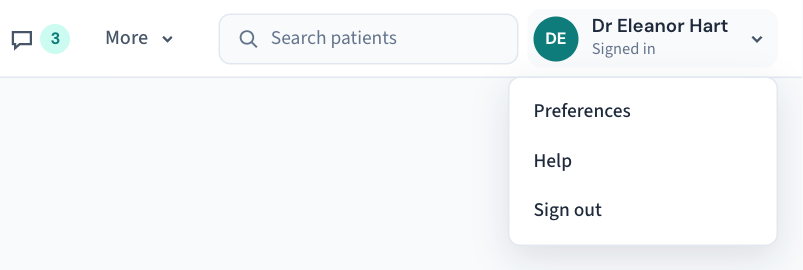
Choose your name, or your initials on a narrower window, at the right-hand end of the menu bar.
| Choose | What happens |
|---|---|
| Preferences | Your own settings: start screen, calendar view, colours, text size, notifications, and for clinicians the scribe style and clinical defaults (KB-131 — Set up Preferences: your start screen, calendar view, colours, notifications and privacy). Everyone can open it. |
| Help | Opens the Curaeon Help Centre in a new browser tab. The screen you were on stays as it was, so nothing you typed is lost. The link tells the Help Centre nothing about which screen, patient or practice you came from. |
| Sign out | Signs you out on this computer (KB-033 — Change how long Curaeon waits before signing you out, and end a session left open). |
Press Esc or click elsewhere to close the menu without choosing.
On a narrow window or a phone
The menu bar does not wrap onto a second line. When the links do not fit, they give up their names one at a time, starting from the end of the row (Messages and Security alerts first, Today last). Each keeps its icon. The screen you are on keeps its name longest.
- Hover over an icon to see the link's name. A screen reader still reads every link's name.
- On a narrower window the Search patients box shrinks to a magnifying-glass icon, and your name is hidden behind your initials.
- On a phone only the icons are left. The row scrolls sideways and keeps the screen you are on in view. More is shown as ⋯.
How many names fit depends on your window's width, your role (an administrator has more links), whether Security alerts is showing, and your text size in Preferences.
The counts beside Messages and Security alerts
- Messages shows how many staff messages you have not read. Curaeon checks every 30 seconds and whenever you open another screen. Reading a conversation clears its count straight away. Above 99 it shows 99+.
- Security alerts appears only while an alert is waiting to be acknowledged, and only for administrators. Curaeon checks every minute. Acknowledging the last alert removes the link, and so does the server clearing a certificate alert once the certificate has been replaced (KB-064 — Sign off the weekly Security review, and act on alerts and audit-log check warnings).
- "?" in place of the number means the count could not be read. It does not mean none. Hover over it to read why. There is nothing to press: Curaeon asks again at the next check, and the "?" goes when it gets an answer. If it stays, see KB-170 — When part of a screen says it could not be loaded: Try again, and what Loading… means.
The Tyro Health line above Billing
The Billing screens carry a line headed Tyro Health across the top. It used to be a card in the sidebar. It says whether this server sends Medicare and DVA claims to Tyro: Filing automatically, Claims held in outbox, Not connected or Status unavailable, with a sentence explaining each. New Medicare claim has its own Tyro card beside the form instead, so the line is not shown there. What each state means for your claims is in KB-156 — Follow a Medicare or DVA claim: its status, Check now and the claims list.
Where things used to be
| It used to be… | It is now… |
|---|---|
| Today, Calendar, Patients, Inbox, Investigations, Recalls, Billing and Reports in the sidebar | The same names in the menu bar |
| Scripts, Plan reviews, Tasks, Follow-up and AIR backlog in the sidebar | More |
| Utilities under the sidebar's Admin heading | More → Utilities |
| Settings under the sidebar's Admin heading, for every staff member | More → Settings, for administrators only |
| Preferences under the sidebar's Admin heading | The account menu, under your name |
| Help and Sign out in the name block at the foot of the sidebar | The account menu, under your name |
| Security alerts and Messages at the foot of the sidebar | The menu bar, after Reports |
| The Tyro Health card in the sidebar on Billing | A line above the Billing screens |
| The menu button and slide-out menu on a phone | The menu bar itself, as icons, with More as ⋯ |
Two ways in that were never in the sidebar are worth knowing. Online booking requests are reached from the Online bookings button in the Calendar's toolbar. Administrators also have an Import button beside New patient on the Patients screen, which opens Settings → Import patients (KB-070 — Import patients, documents, appointments and balances from your previous system, and read the reconciliation report).
If you cannot find something
- A screen is not in More. Your role cannot use it. The server would refuse it anyway, so the menu does not offer it. Ask your practice's administrator if you need it (KB-121 — Change what each role may do in Settings → Permissions).
- There is no Settings in More. Settings are for administrators only. If you open a Settings address directly, from a bookmark or a link, the page names the setting and refuses, for example: "Settings are kept by the practice's administrators. Ask one of them to change Fees for you." Preferences is still yours, in the account menu.
- There is no Security alerts link. It shows only for administrators, and only while an alert is waiting. No link means none is waiting, or you are not an administrator.
- The links are only icons. Your window is too narrow for every name. Hover over an icon, widen the window, or choose a smaller text size in Preferences.
- Your name says "Who is signed in could not be read", with Try again. Curaeon could not read who you are, so screens show what a clinician is shown until it can. Choose Try again (KB-170 — When part of a screen says it could not be loaded: Try again, and what Loading… means).
- I used a bookmark to an old screen. Bookmarks still work. Only the way in has moved.
Still stuck? Raise a ticket at support.curaeon.com.au or call 1300 XXX XXX. If your clinic can't see patients right now, call and choose option 1. Support is staffed Monday to Friday, 8:00–18:00 Sydney time; outside those hours a call or text to the same number is answered on a best-effort basis.
Related articles
- KB-131 — Set up Preferences: your start screen, calendar view, colours, notifications and privacy — Set up Preferences: your start screen, calendar view, colours, notifications and privacy
- KB-115 — Find your way around Settings: every section, who can open it, and where to read more — Find your way around Settings: every section, who can open it, and where to read more
- KB-133 — Find your way around Utilities: every section, what it is for and who can open it — Find your way around Utilities: every section, what it is for and who can open it
- KB-034 — Choose the right role and permissions for a new staff member — Choose the right role and permissions for a new staff member
- KB-064 — Sign off the weekly Security review, and act on alerts and audit-log check warnings — Sign off the weekly Security review, and act on alerts and audit-log check warnings
- KB-170 — When part of a screen says it could not be loaded: Try again, and what Loading… means — When part of a screen says it could not be loaded: Try again, and what Loading… means
- KB-082 — What to have ready before you contact support — What to have ready before you contact support