Read the Reports screen: My dashboard, Performance and the Billing & claims summary
Know who can open each report under Reports, what period it covers, and exactly what each number counts, so two figures with the same name are not mistaken for each other.
Before you start
Reports is in the menu bar for everyone. It opens on one page, the Reports home, and every report opens from there, full width.
| Part of Reports | Who sees it | Covered in |
|---|---|---|
| My dashboard, at the top of the home | Every signed-in user | This article |
| Practice overview, under the dashboard | Practice administrators only | This article |
| All reports: Practice performance | Anyone with the reports.view permission: clinicians and practice administrators unless your practice has changed that (KB-121 — Change what each role may do in Settings → Permissions) |
This article |
| All reports: Find patients | The same people as Practice performance | KB-080 — Find patients by clinical criteria and export the list |
| All reports: Scripts written with allergies or medications unread | The same people as Practice performance. A practice administrator sees the practice's scripts; anyone else sees only the scripts they wrote | This article |
| All reports: Billing & claims summary, the other Practice and Billing reports, Your reports and New custom report | Practice administrators only | This article and KB-080 — Find patients by clinical criteria and export the list |
All dates and "today" are the practice's, not your computer's. Nothing on these screens is worked out in the browser, and none of it leaves the practice network.
The Reports home
The home is one long page, in this order:
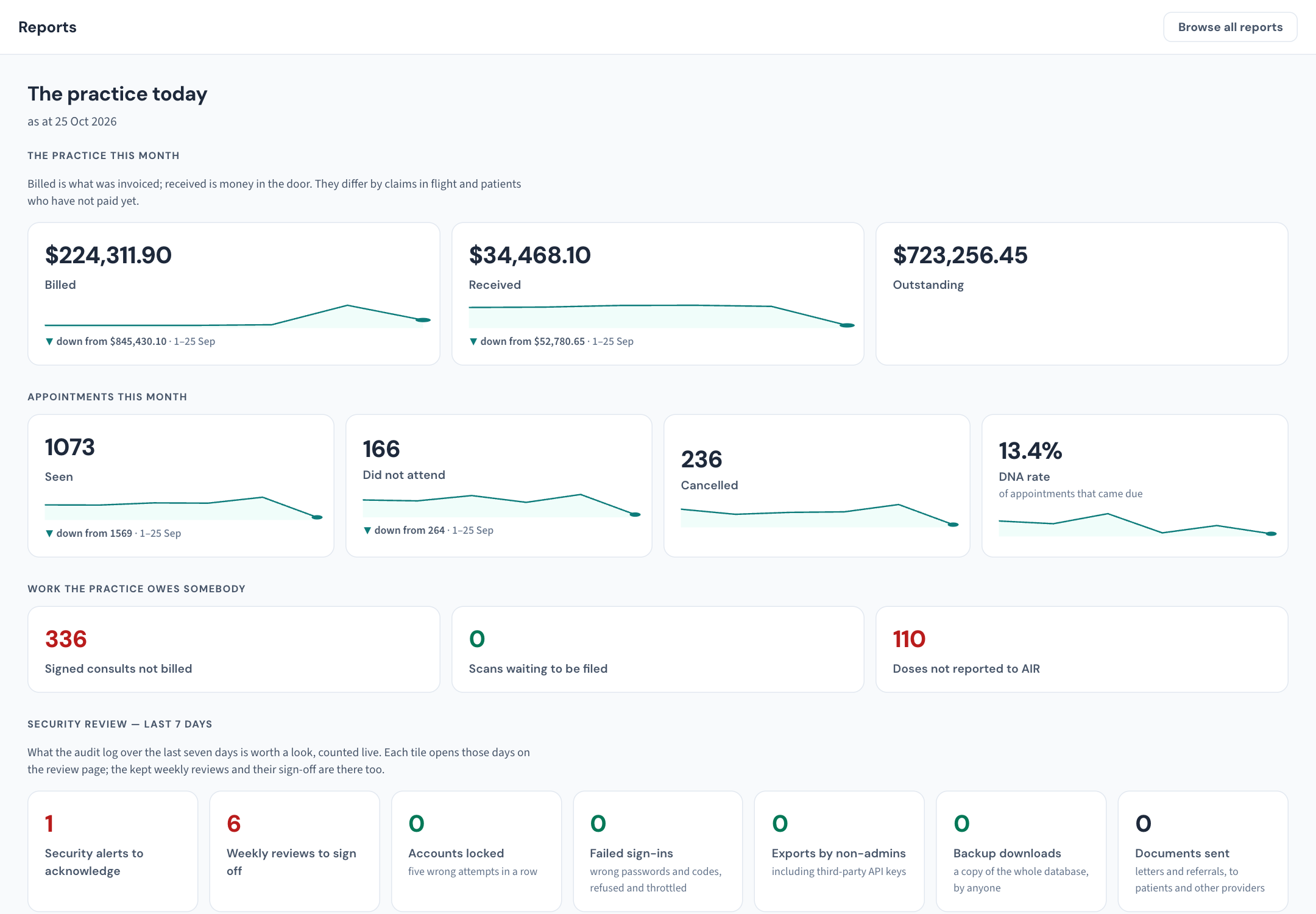
- My dashboard: the tiles for your role, headed for example The practice today (below).
- Practice overview, for administrators: four figures for the period (Billed, Appointments, Highest DNA rate, Lowest bulk-bill rate), with 30 days, 90 days or This year, and four charts. Choose any of them to open the full report.
- All reports: a card for every report you may open, grouped Practice, Billing, Patients and Prescribing, then Your reports (custom reports saved in this browser) and New custom report. Type in Find a report… to narrow the cards; with keyboard shortcuts on (KB-131 — Set up Preferences: your start screen, calendar view, colours, notifications and privacy), / puts the cursor there.
Browse all reports, at the top right, jumps down to All reports. For an administrator the home is long.
Choose a card to open that report. It fills the page, with ← All reports at the top left to go back, its name in the bar, and Export CSV at the top right. The report's name is also in the web address after #, so a link can take someone straight to it. The old tabs (My dashboard, Find patients, Performance, Practice reports) are gone; an old link to one lands on the home.
My dashboard
Your dashboard is chosen by your role. You cannot open anyone else's. It has no period control: it shows today and this month (from the 1st), and the date under the heading says the day it was read. Most tiles open the work list or report behind the number. A red tile needs attention.
Lines and arrows. A tile that counts a month carries two extra things:
- a small line showing the last six months, this month so far last;
- an arrow comparing this month so far with the same days of last month, for example "▲ up from $398,120.00 · 1–18 Sep".
Up and down are the same colour. The arrow says which way the number moved, not whether that is good. The lines and arrows are on the administrator's Billed, Received, Seen and Did not attend; Cancelled and DNA rate have a line only; a clinician's Consults this month and a nurse's Immunisations this month have both. Outstanding, and a clinician's own Billed and Received, have neither, on purpose: a month-on-month arrow beside a doctor's own fees would be a nudge however it was worded.
Amounts are written with thousands separators, for example $411,071.85.
| Role and heading | Tile | What it counts |
|---|---|---|
| Clinician: Your work today | Consults today, Consults this month | Visits you started today, and since the 1st |
| Care plan reviews due | Your active care plans whose review date has been reached | |
| Owing scripts | Your scripts still marked owing. The line underneath says how many are past the due date (KB-044 — Record and settle an owing script) | |
| Unreviewed results and letters | The whole practice's unreviewed Inbox items. It is a shared queue, not your personal allocation | |
| Billed, Received | Issued or paid invoices raised this month under your name, and the payments taken against them | |
| Practice average per clinician | The month's billed total averaged across practitioners. No one is named | |
| Nurse: Your clinics today | Appointments today | Today's appointments booked with you, leaving out cancelled and did not attend |
| Immunisations given today, this month | Doses you gave | |
| Doses not reported to AIR | Every dose not yet sent to the register, whoever gave it (KB-079 — Record an immunisation and work the AIR backlog) | |
| Recalls due, nobody contacted yet | Pending recalls due today or earlier | |
| Reception: The front desk today | Booked, In the building, Finished, Did not attend | Today's appointments by status. Booked leaves out cancelled and did not attend |
| Online booking requests, Recalls to contact, Contacted, awaiting a booking | The three queues waiting on the desk | |
| Banked today | Payments received today | |
| Owing over 90 days | The unpaid balance on private and WorkCover invoices issued 91 or more days ago. Bulk-billed and DVA invoices never appear as patient debt | |
| Administrator: The practice today | Billed | Issued or paid invoices raised this month |
| Received | Payments received this month, against any invoice | |
| Outstanding | The unpaid balance on every invoice still at issued, whatever its age | |
| Seen, Did not attend, Cancelled | Appointments scheduled from the 1st of this month, by status | |
| DNA rate | Did not attend ÷ (seen + did not attend) | |
| Signed consults not billed | Signed-off consults with no invoice, or only a voided one (KB-161 — Find consults that were never billed: the Consults to bill list) | |
| Scans waiting to be filed, Doses not reported to AIR | The scanning tray and the AIR backlog | |
| Security review — last 7 days (eleven tiles) | What the audit log holds for the last seven days, counted live: reviews to sign off, accounts locked, failed sign-ins, exports, backup downloads, documents sent, records opened after hours and more. Each tile opens the Security review (KB-064 — Sign off the weekly Security review, and act on alerts and audit-log check warnings) |
No dashboard ranks named practitioners or compares anyone with a target.
Practice performance
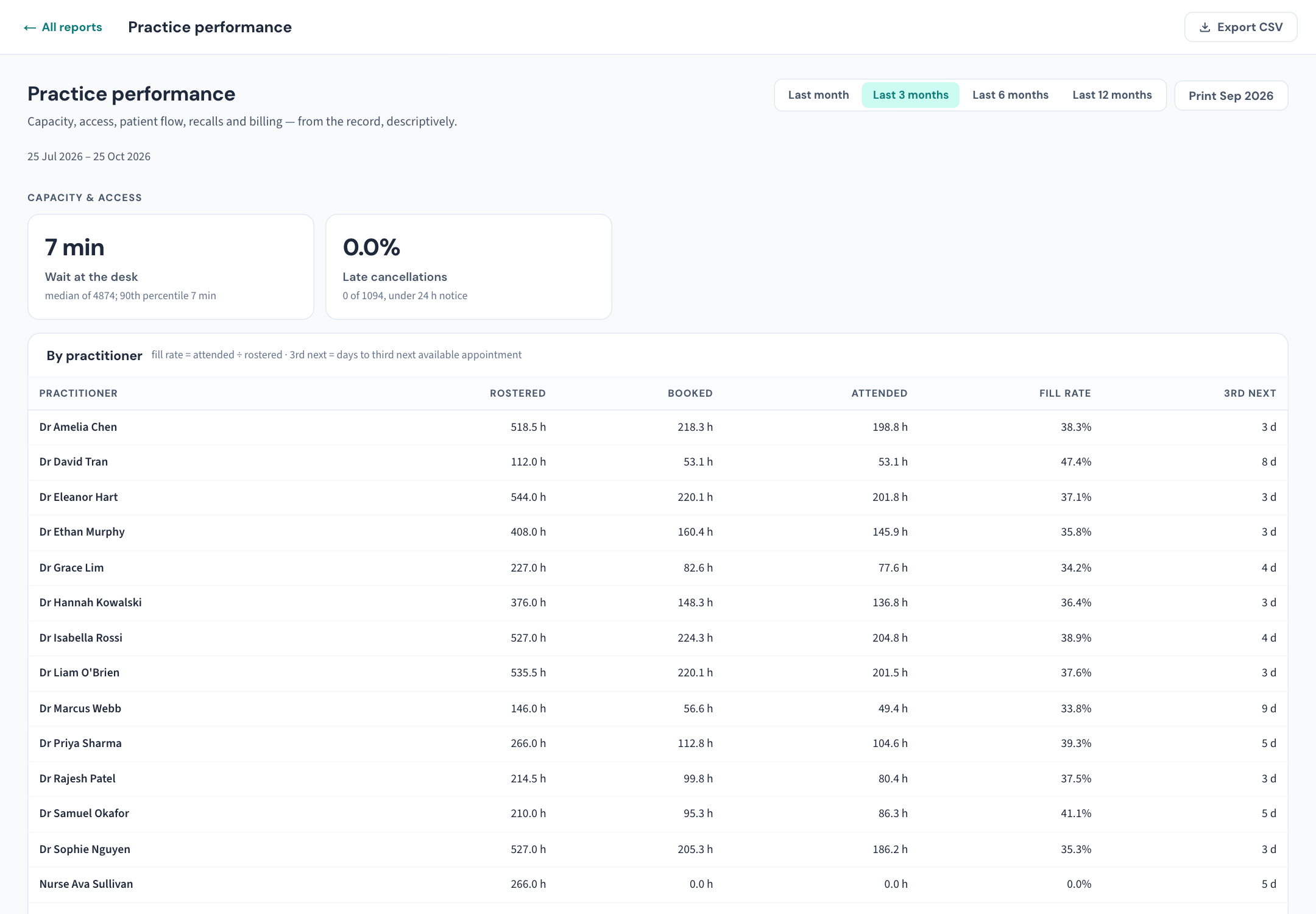
Open it from All reports → Practice. It is headed Practice performance. A practice administrator sees the whole practice. Anyone else sees their own rows, and the heading says Showing your own figures.
Period. Choose Last month, Last 3 months (the default), Last 6 months or Last 12 months. Each runs back from today, so the current month is part-way through. The dates are printed under the heading.
| Block | Figure | What it counts |
|---|---|---|
| Capacity & access | Wait at the desk | Median minutes from marked arrived to the consult starting, with the 90th percentile. Only appointments that recorded both |
| Late cancellations | Cancellations made less than 24 hours before the start, as a share of all cancellations | |
| Rostered, Booked, Attended | Hours on the roster after leave and closures; hours booked, leaving out cancelled and did not attend; hours of appointments that went ahead | |
| Fill rate | Attended ÷ rostered | |
| 3rd next | Days from today to the third day with at least 15 minutes free, looking 60 days ahead. none in 60 d and no roster ahead mean what they say | |
| Did not attend | By weekday, By booking source, By appointment type | Did not attend as a share of past appointments in the period, leaving out cancelled. The lines underneath are the most common cancellation reasons |
| Patient flow | Drifted away | Active patients with three or more visits in the two years before 18 months ago, and none since |
| Rebooked at the visit | Attended appointments where the patient had a later appointment made within a day | |
| Telehealth, after hours | Share of consults started in the period, by consult type | |
| New vs returning patients, by month | New: the patient's first attended appointment here falls in that month | |
| Recalls | Due, Contacted, Booked, Completed | Recalls with a due date in the period, by how far they got. Each stage includes the later ones |
| Attended after SMS | Of appointments that had an SMS reminder sent, the share attended | |
| Billing | Rostered, Billed, Per hour, Consults, Per consult, Avg gap (private) | Fees on invoices issued in the period, ex GST. Consults is the number of invoices. Gap is fee less benefit on private invoices |
| Month by month | Billed, payments received and invoice count per month, with the change on the month before in brackets | |
| Top items billed | The 15 item numbers billed most often | |
| Care-plan and health-assessment items billed | The same, for those item groups | |
| Private fees against the schedule | Your average private fee beside the schedule fee, largest differences first | |
| Claims rejected | Of claims created in the period: those now rejected ÷ those that were submitted | |
| Days to settle | Median days from submission to payment, for paid claims | |
| Rejection … × n, Awaiting Medicare … × n | The most common rejection codes, and claims sent but not yet answered, by days since they were sent |
Three things to know when reading it:
- Some figures are always practice-wide. The recall counts are the practice's even when the rest is your own.
- A dash is not a zero. A figure the record cannot support shows — with the reason, for example "no arrivals recorded".
- It describes; it never advises. The Billing block says: "What was billed — never what should have been. Curaeon does not suggest item numbers."
Note: Claim figures count claims Curaeon holds. Claims are filed with Medicare only once your practice's Tyro connection is switched on (KB-156 — Follow a Medicare or DVA claim: its status, Check now and the claims list).
Billing & claims summary
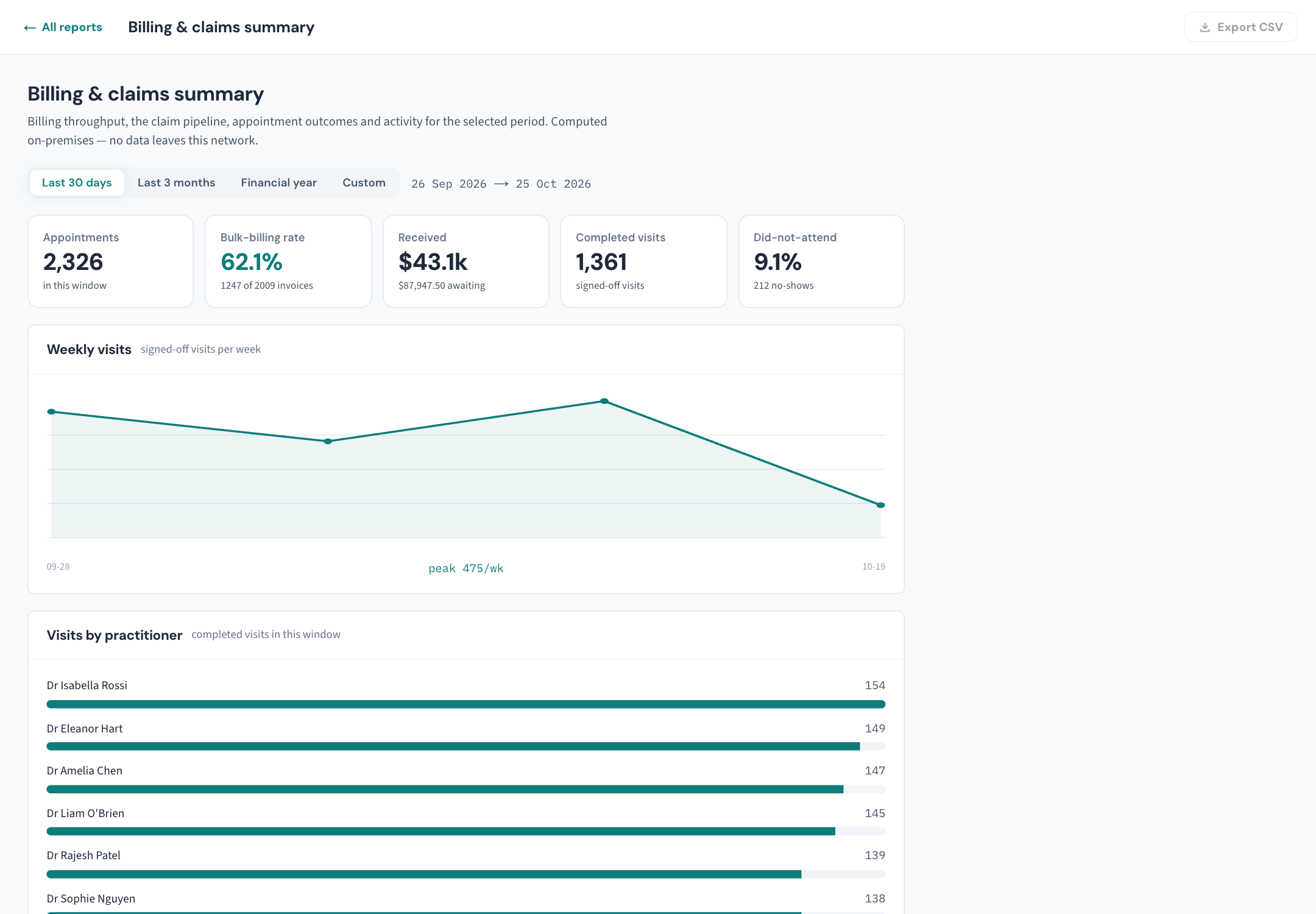
- Open Reports, and under All reports → Billing choose Billing & claims summary.
- Choose Last 30 days, Last 3 months, Financial year (from 1 July) or Custom. For Custom, set From and To, then choose Apply.
| Figure or card | What it counts |
|---|---|
| Appointments | Every appointment scheduled in the period, whatever its status |
| Bulk-billing rate | Bulk-bill invoices ÷ all invoices issued in the period, by number of invoices |
| Received | Payments received in the period |
| awaiting (under Received) | The value of invoices issued in the period that are still unpaid or part-paid. A part-paid invoice counts at its full value, not its balance |
| Completed visits | Appointments in the period marked completed |
| Did-not-attend | Did not attend ÷ every appointment in the period, cancelled and upcoming ones included |
| Weekly visits, Visits by practitioner | Appointments that went ahead, per week from Monday and per practitioner |
| Billing by type | Invoices issued in the period: bulk bill, private, DVA and WorkCover, with number and value |
| Medicare claims | Every claim Curaeon holds, by its status today: queued, submitted, accepted, rejected, paid. It is not limited to the period |
| Appointment outcomes | Appointments in the period by status |
The line at the foot gives the number of active patients: not inactivated and not deceased.
Scripts written with allergies or medications unread
A script can still be written when the patient's allergies or current medications could not be loaded: the prescriber's screen says the read failed, the prescriber ticks an acknowledgement, and the acknowledgement is kept with the script (KB-144 — Write a prescription: repeats, authority, Schedule 8, brands, reprint and cancel). This report lists those scripts for a period, so a practice can see how often it is happening.
As the report says of itself, "They are not mistakes: they show how often the record could not be read." A row says that a read failed and that the prescriber acknowledged it before going on, which is what the screen asks of them. Prescribers are listed in name order and are not ranked.
- Open Reports, and under All reports → Prescribing choose Scripts written with allergies or medications unread.
- Choose This month (the default), Last month, Last 3 months or Last 12 months. The dates are the practice's.
Whose scripts you see. The line under the heading says which, and every sentence below it is worded to match:
| You are | The line says | An empty period says |
|---|---|---|
| A practice administrator | "Showing every prescriber in the practice." | "No script was written with the allergies or current medications unread from" the first date "to" the last |
| Anyone else | "Showing only the scripts you wrote. Scripts other prescribers wrote are not shown here." | "You wrote no script with the allergies or current medications unread from" the first date "to" the last. "Scripts other prescribers wrote are not shown here." |
For anyone but an administrator, "You wrote no script …" is about your own scripts only. It says nothing about whether colleagues wrote any. Someone who can open Reports and does not prescribe always sees that line.
What it shows. When the period holds any, the report gives the number of scripts and the dates, then two tables:
| Table | Columns | What it counts |
|---|---|---|
| By prescriber (Your scripts on your own) | Prescriber, Scripts, Allergies not loaded, Current medications not loaded | The scripts each prescriber wrote this way in the period, and which part was not loaded. "A script written with both not loaded is one script, counted in both columns." |
| The scripts (Each of your scripts on your own) | Written, Prescriber, Could not be loaded, Patient | One row per script, newest first: the date and time, who wrote it, Allergies, Current medications or Allergies and current medications, and the patient. A list of your own scripts has no Prescriber column: every row is yours |
Things to know:
- The patient's name opens their record. Opening the report does not count as opening any patient's record. It is recorded in the Audit log as Report viewed, naming the report and how many patients it listed (KB-101 — Find who did what in the Audit log: kinds, Sign-ins, Exactly, Who and a bookmarkable view). Choosing a name is your own opening of that record, and is recorded as one.
- A long list comes 100 at a time. A line says which part you are looking at, for example "Showing 1 to 100 of 176 scripts." Newer and Older are above the list and again under it, and choosing either leaves you at the list. The counts by prescriber are for the whole period, whichever page you are on.
- Scripts in restricted records are left out for anyone the record is not open to, and the report says how many: "2 scripts are not shown: they are for restricted records, open only to the clinicians those records name." It counts scripts, so two may be for one patient. The total and the counts by prescriber still include them. A page made up only of such scripts says "Nothing on this page is open to you." (KB-061 — Restrict a patient's record, and open one in an emergency).
- A script cancelled afterwards is still listed. The acknowledgement happened.
- There is no CSV and no print of this report, and no Export CSV button in its bar. Its rows name patients.
- An administrator cannot narrow it to one prescriber. The table by prescriber is the answer to that.
- If the report cannot be read, the page says so in place of the report, for example "The report could not be assembled.", with Try again beside it. That is not an empty period (KB-170 — When part of a screen says it could not be loaded: Try again, and what Loading… means).
If the same prescriber, or the whole practice, appears here often, the record is failing to load often. Raise a ticket with the period and the counts. Do not include a patient's name.
The same word, three different numbers
| Word | My dashboard | Practice performance | Billing & claims summary |
|---|---|---|---|
| Did not attend rate | Of appointments seen or missed this month | Of past appointments in the period, cancelled left out | Of every appointment in the period |
| Rejected claims | Not shown | Claims created in the period that are now rejected | Every rejected claim held, of any date |
| Awaiting | Outstanding: unpaid balances, any age | Awaiting Medicare: claims sent and not answered | Full value of unpaid and part-paid invoices issued in the period |
Quote the screen and the period with any figure you pass on.
Export and print
- Export CSV (top right, once a report is open) exports the report on screen. On Practice performance it saves the tables as one file with raw values: capacity, third next available, the three did-not-attend tables, new and returning, throughput, month by month and top items. The tiles, the recall and claim figures, and the care-plan and private-fee tables are not in the file. On Billing & claims summary the button stays greyed out ("Nothing to export in this report yet"): that report has no export. For a spreadsheet of billing, use the billing history export in Utilities → Import & export (KB-135 — Export the patient list, billing history or the whole database from Utilities → Import & export).
- The home has no export. On the Billing & claims summary the button is greyed out: there is nothing to export. Scripts written with allergies or medications unread has no Export CSV button at all.
- Print, on Practice performance, is labelled with a month, for example Print Sep 2026. It opens the monthly practice report for the last complete month in the period, on your letterhead: billing and claims, capacity and access, patients and recalls, and the quality measures with their caveat (KB-105 — Read Quality measures, registers and preventive care due — and why they are not the PIP QI extract). Press Print on that page. The print is recorded in the Audit log.
- Print is shown only to practice administrators, because the printed report includes the practice's billing summary. A clinician sees Practice performance, with their own figures, and no Print button.
A Performance export can include practitioners' names and billings. Treat the file as staff information. For a list of patients, use Find patients (KB-080 — Find patients by clinical criteria and export the list); for a report these screens do not produce, see KB-023 — Requesting a data export or report.
If that didn't work
- A report card is missing from All reports. Your role does not have it. See the table at the top. Until the dashboard has loaded, All reports is not drawn at all.
- I had a bookmark to a Reports tab. The tabs are gone and the link opens the home. Open the report from All reports and bookmark it again.
- A red message instead of figures. The view could not be loaded. If it is the dashboard that failed, the All reports cards are not shown either: Curaeon does not guess which reports you may open. Curaeon does not show an empty report in its place. Choose Try again beside the message: it asks for that view again without reloading the page. If it repeats, raise a ticket with the wording (KB-170 — When part of a screen says it could not be loaded: Try again, and what Loading… means).
- Loading…, Assembling… or Loading practice summary… that does not finish. The view is still waiting for the server. It is not an empty report. If it stays, reload the page.
- Fill rate or 3rd next is blank. There is no roster for that practitioner in the period, or none ahead. Set it in Settings → Rosters (KB-119 — Set up rosters, rotating cycles and leave in Settings → Rosters: the complete walkthrough).
- Wait at the desk shows a dash. Nobody was marked arrived. Mark patients arrived at the desk (KB-076 — Appointment statuses from pending to completed, and what "At reception" means).
Still stuck? Raise a ticket at support.curaeon.com.au or call 1300 XXX XXX. If your clinic can't see patients right now, call and choose option 1. Support is staffed Monday to Friday, 8:00–18:00 Sydney time; outside those hours a call or text to the same number is answered on a best-effort basis.
Related articles
- KB-080 — Find patients by clinical criteria and export the list — Find patients by clinical criteria and export the list
- KB-105 — Read Quality measures, registers and preventive care due — and why they are not the PIP QI extract — Read Quality measures, registers and preventive care due — and why they are not the PIP QI extract
- KB-023 — Requesting a data export or report — Requesting a data export or report
- KB-161 — Find consults that were never billed: the Consults to bill list — Find consults that were never billed: the Consults to bill list
- KB-144 — Write a prescription: repeats, authority, Schedule 8, brands, reprint and cancel — Write a prescription: repeats, authority, Schedule 8, brands, reprint and cancel
- KB-156 — Follow a Medicare or DVA claim: its status, Check now and the claims list — Follow a Medicare or DVA claim: its status, Check now and the claims list
- KB-053 — Month-end and end of day: aged debtors, statement runs and bank reconciliation — Month-end and end of day: aged debtors, statement runs and bank reconciliation