Keep the practice address book in Settings → Address book: add, edit and retire a contact
Add the specialists, hospitals and labs your practice writes to, record each one's secure messaging address and the network it is on, correct a wrong entry, and retire a contact that should no longer be offered.
Before you start
The address book is the list every referral and request form picks its recipients from. A referral letter prints its recipient's organisation and provider number straight from here, so a wrong entry is a wrong letter.
Open Settings in the sidebar, then Address book under Practice.
| You can | Who |
|---|---|
| Open the screen, search the contacts, search Find a provider | Everyone who is signed in. Reception looks up who a report goes to. |
| Add contact, Edit, Retire, Restore, and see Directory sources | Administrators (the practice.admin permission). For everyone else these buttons are not shown. |
| Add a provider from the directory while addressing a referral | Clinicians, from the referral itself (KB-048 — Refer a patient: find a provider in HealthLink/HealthShare, or record a referral without a letter). An administrator can correct the entry here afterwards. |
A tour of the screen
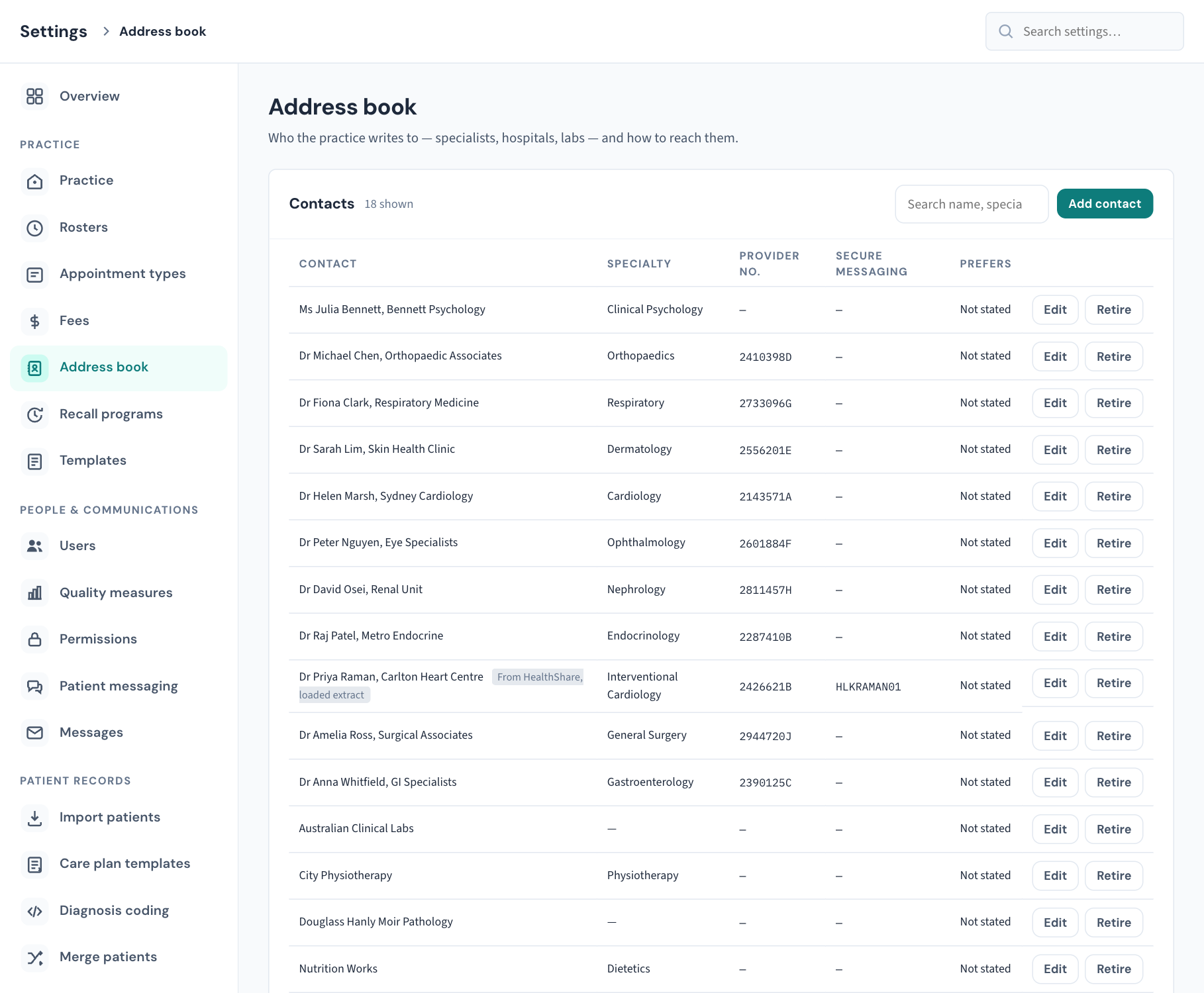
Contacts. The practice's own list. The search box filters as you type, on name, specialty or secure messaging address, and the header says how many are shown. Each row has:
- Contact: the name, with a Retired tag if it has been retired, and a tag such as "From HealthLink" or "From HealthShare, extract loaded" with a date if the contact was copied from a directory and not typed.
- Specialty and Provider no.
- Secure messaging: the contact's secure messaging address, or a dash when none is recorded.
- Prefers: how this contact wants to be reached.
- Edit and Retire (or Restore), for administrators.
Find a provider. Searches the published provider directories so you can add someone without typing them. Covered in KB-048 — Refer a patient: find a provider in HealthLink/HealthShare, or record a referral without a letter.
Directory sources. Administrators only, at the foot of the page: where Find a provider looks and how fresh each source is. Covered in KB-103 — Check Directory sources when Find a provider says "extract", looks stale, or cannot reach a directory.
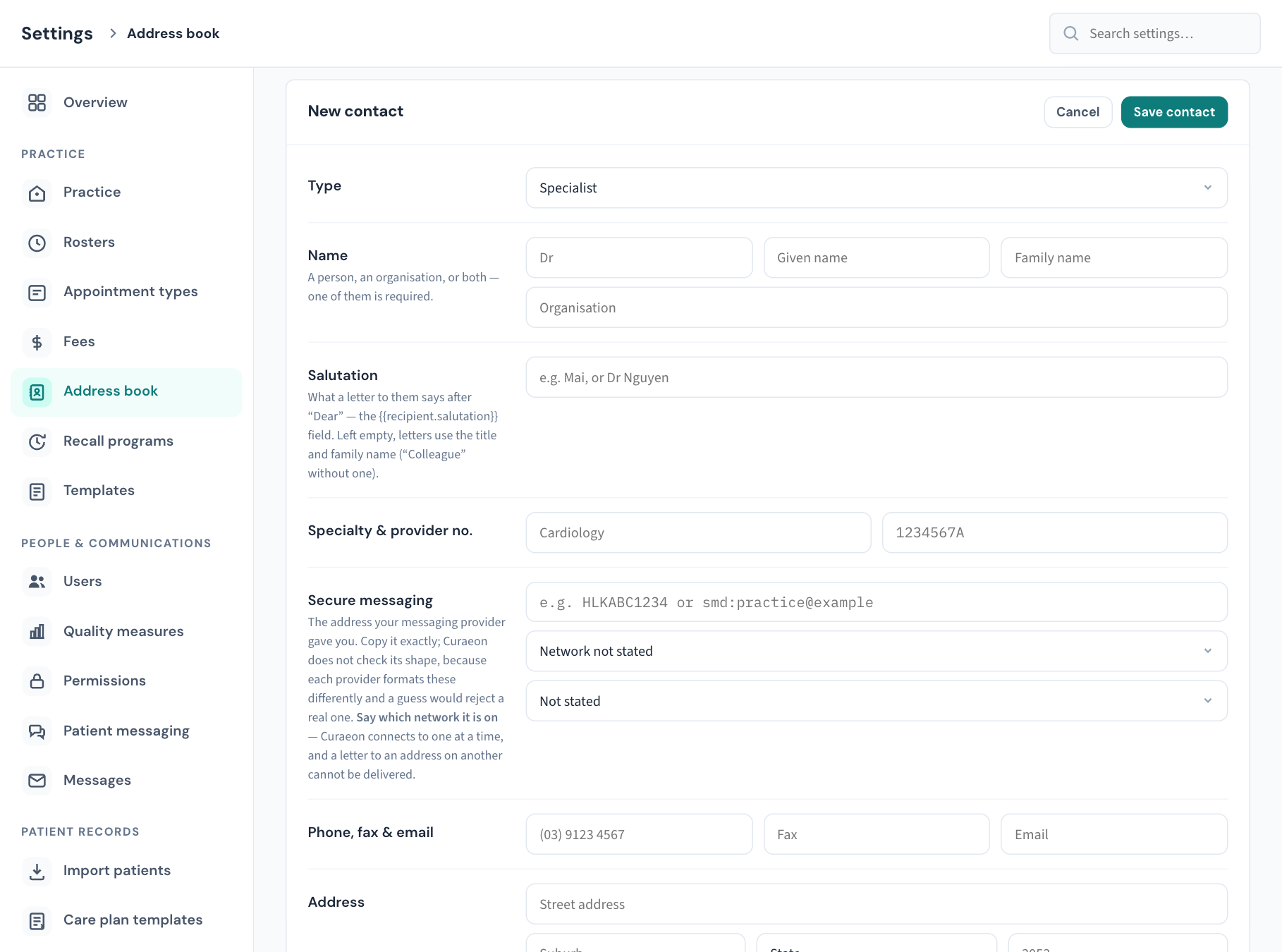
New contact or Edit contact. This card appears at the bottom of the page when you add or edit. If you choose Add contact and nothing seems to happen, scroll down.
Add a contact by hand
- Choose Add contact. The New contact card opens at the foot of the page.
- Choose the Type: Specialist, Hospital, Pathology, Imaging, Pharmacy, Allied health, Aged care, Insurer or Other.
- Enter the Name: a title, given name and family name, an Organisation, or both. A contact needs a family name or an organisation name.
- Optionally enter a Salutation: what a letter says after "Dear". Left empty, letters use the title and family name, or "Colleague" when there is no family name.
- Enter the Specialty and Provider number. The provider number prints on referrals to this contact.
- Fill in Secure messaging (see the next section).
- Enter Phone, Fax and Email, and the Address: street, suburb, state and a four-digit postcode.
- Add a Notes line if useful. It is an internal note.
- Choose Save contact.
A message confirms "Saved" with the contact's name, and the contact is offered in referral and request pickers straight away.
Secure messaging address, network and preferred channel
The secure messaging row has three parts, and each one matters.
The address. Type the address the contact's messaging provider gave them, exactly as given. Curaeon does not check its shape, because each network formats these differently and a guess would reject a real one. It refuses only what is obviously not an address: one with spaces in it, or one that is far too long.
The network. Choose HealthLink, Argus, Medical Objects, ReferralNet or Another network, or leave it at Network not stated. Curaeon connects to one secure messaging network at a time. Naming the network on an address is what lets a letter to a contact on a different network be refused at the moment someone presses send, naming both networks, instead of being marked sent and never delivered. A contact left at Network not stated still sends; only a stated mismatch is refused. What happens after sending is in KB-059 — Secure-messaging referral "Not delivered" or stuck on "Sent — awaiting confirmation".
The preferred channel. Choose Secure message, Email, Fax or Post, or leave it at Not stated. This records how the contact wants to be reached. It is recorded, not guessed: a specialist with a secure messaging address who still wants paper is not a contradiction.
Add a contact from a directory
- In Find a provider, type a name, practice, specialty or suburb.
- Choose which directory to search (All, HealthLink, HealthShare or Practice list) and choose Search. Nothing is loaded until you search.
- Read the Source on each result. It says whose directory the row is from and how fresh it is. Where two directories list the same provider, both rows are shown under one line saying so; choose the row to use.
- Choose Add to address book on the row.
- The New contact card opens with the directory's details filled in. Check them, then set the network and the preferred channel yourself. The directory's secure messaging address is copied across, but neither of those two is assumed: a directory listing an address is not the same as the provider preferring it.
- Choose Save contact.
Nothing is added until you save, so you always see what you are copying. How to read the source badges, and what to do when a directory cannot be reached or an extract is stale, is in KB-103 — Check Directory sources when Find a provider says "extract", looks stale, or cannot reach a directory.
Edit a contact
- Find the contact and choose Edit.
- Change what is wrong in the Edit contact card at the foot of the page.
- Choose Save contact, or Cancel to leave it as it was.
Correcting a contact here does not change the directory it came from. A later directory search may list the published details again as a separate row.
Referrals already written keep pointing at this contact, so a corrected provider number or address is what future prints of those referrals use.
Retire and restore a contact
Nothing in the address book is deleted. Referrals point at these entries, and a referral whose recipient vanished would be a referral to nobody. A contact you no longer use is retired instead.
- Find the contact and choose Retire. There is no confirmation step.
- The message reads that the contact is retired and "kept on referrals that already name them". The row stays in this list with a Retired tag.
A retired contact is no longer offered when someone addresses a new referral or request. Past referrals to them are unaffected.
To bring one back, choose Restore on its row. It returns to the pickers at once.
Tip: A specialist who has moved practice is usually an edit, not a retire: same person, new address and secure messaging address. Retire when the practice should stop writing to them altogether.
What is recorded
Adding and changing a contact are recorded in the Audit log as Address book contact added and Address book contact updated, with the old and new values. Retiring and restoring are updates. A provider copied in from a directory by a clinician is recorded as Contact copied from the directory.
If that didn't work
| The message says | What to do |
|---|---|
| "A contact needs a family name or an organisation name." | Enter one of them. |
| "that does not look like a secure messaging address — copy it from your messaging provider" | Remove any spaces and paste the address exactly as the provider wrote it. |
| "postcode must be 4 digits" | Correct the postcode. |
| "the salutation must be 100 characters or fewer" | Shorten it. |
| "No contacts match." | Clear the search box. If the list is empty with no search, no contact has been added yet. |
| Find a provider: "No match. The directory is loaded from a published extract…" | The provider is not in the loaded directories. Type the contact in by hand. If you expected them to be listed, see KB-103 — Check Directory sources when Find a provider says "extract", looks stale, or cannot reach a directory. |
| A red line above the Find a provider results naming a directory | That directory could not be reached. The other directory's results are still listed (KB-103 — Check Directory sources when Find a provider says "extract", looks stale, or cannot reach a directory). |
| You cannot see Add contact or Edit | You are not an administrator. Ask one, or add the provider from a referral (KB-048 — Refer a patient: find a provider in HealthLink/HealthShare, or record a referral without a letter). |
| A referral to this contact was refused or came back Not delivered | Check the secure messaging address and its network here, then see KB-059 — Secure-messaging referral "Not delivered" or stuck on "Sent — awaiting confirmation". |
Still stuck? Raise a ticket at support.curaeon.com.au or call 1300 XXX XXX. If your clinic can't see patients right now, call and choose option 1. Support is staffed Monday to Friday, 8:00–18:00 Sydney time; outside those hours a call or text to the same number is answered on a best-effort basis.
Related articles
- KB-115 — Find your way around Settings: every section, who can open it, and where to read more — Find your way around Settings: every section, who can open it, and where to read more
- KB-048 — Refer a patient: find a provider in HealthLink/HealthShare, or record a referral without a letter — Refer a patient: find a provider in HealthLink/HealthShare, or record a referral without a letter
- KB-103 — Check Directory sources when Find a provider says "extract", looks stale, or cannot reach a directory — Check Directory sources when Find a provider says "extract", looks stale, or cannot reach a directory
- KB-059 — Secure-messaging referral "Not delivered" or stuck on "Sent — awaiting confirmation" — Secure-messaging referral "Not delivered" or stuck on "Sent — awaiting confirmation"
- KB-088 — Letters and referrals FAQ — Letters and referrals FAQ