Is eRx working? Read Settings → eRx Script Exchange: the outbox, the certificate and who is not yet on it
Answer "are our scripts reaching eRx, and if not, why?" from one screen, and know the one thing you can do there about it.
First, where things stand today
eRx is not yet connected at Curaeon practices. Curaeon's accreditation with eRx Script Exchange is still in progress, and until it is complete the connection stays switched off on your server. The Help Centre's known issues say the same. On this screen that looks like a grey Off badge beside the heading and this sentence under it:
The worker is not enabled on this server (CURAEON_ERX_ENABLED). Scripts by prescribers with an Entity Id still carry a SCID and queue here, unsent, until it is.
That is the expected state, not a fault, and nothing on this screen needs your attention while it reads Off. Prescriptions print on paper and are valid as they always were. Switching the connection on is done on the practice server, with us, when your practice is onboarded; it is not a setting in the browser.
The rest of this article describes the whole screen so that you can read it on the day the badge changes. If a patient or pharmacy says a script has not arrived, start with KB-018 — eRx not reaching the pharmacy — checklist.
Before you start
- Who can open it. Practice administrators only (the practice.admin permission, KB-034 — Choose the right role and permissions for a new staff member).
- Where it is. Settings → eRx Script Exchange, in the Operations & governance group.
- What it is for. Reading, mostly. The only action on the screen is Retry, for a message Curaeon has given up sending.
How a script reaches eRx
Three things have to be true for a script to be uploaded:
- The prescriber is on eRx. eRx issues each prescriber an Entity Id, entered on their staff account. With it, every script that doctor writes carries a SCID (the script's identifier at eRx) and its barcode. Without it, their scripts print as paper only.
- The connection is on on the practice server.
- The certificate is valid. eRx signs in with the practice's NASH certificate (KB-020 — NASH certificates — why they matter and how renewal works).
When the script is printed, a copy is queued in the outbox and sent to eRx. If eRx cannot be reached, the message waits and is sent again by itself. The printed script stays valid throughout; the upload lets the pharmacy scan the barcode instead of typing the script in.
What the screen shows
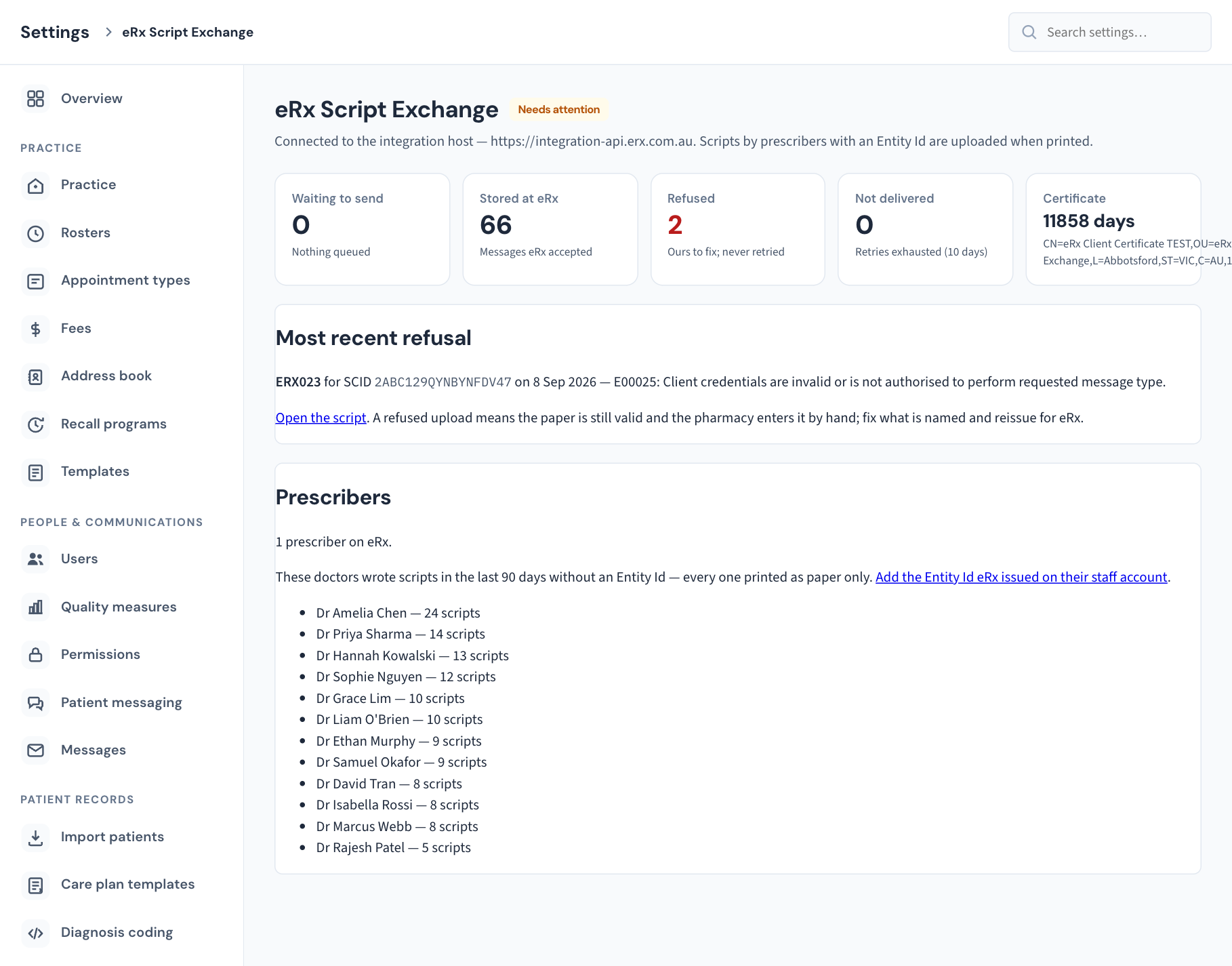
The badge and the line under the heading
| Badge | Meaning |
|---|---|
| Off (grey) | The connection is not switched on for this server. Scripts by prescribers with an Entity Id queue, unsent. |
| Sending (green) | Connected, nothing refused, nothing given up on, and the certificate has 30 days or more left. |
| Needs attention (amber) | Connected, but at least one message was refused or given up on, or the certificate has fewer than 30 days left. The tiles show which. |
When connected, the line under the heading names what the server is connected to: PRODUCTION and the host, or the integration host, which is eRx's test environment. A live practice should read PRODUCTION. If yours says the integration host, tell us.
The five tiles
| Tile | What it counts | What to make of it |
|---|---|---|
| Waiting to send | Messages queued or being sent right now. Underneath: Oldest since and a date, or Nothing queued. | A few, briefly, is normal. A growing number with an old "oldest" date means eRx cannot be reached, or the connection is off. They send themselves when it returns. |
| Stored at eRx | Messages eRx accepted. | The running total of what has gone through. |
| Refused | Messages eRx rejected. Shown in red when above zero. The tile says Ours to fix; never retried. | Each one needs a person: see A refused script, below. |
| Not delivered | Messages Curaeon gave up on after ten days of trying. Shown in amber when above zero. | See A script that was not delivered, below. |
| Certificate | Days until the certificate eRx signs in with expires, or Expired; underneath, who the certificate names, or None loaded. A dash means eRx is off. | Under 30 days turns the badge to Needs attention. Renew it (KB-021 — NASH certificate renewal — step-by-step). An expired certificate stops every upload at once. |
A "message" is not always a whole script. A new script is one message; cancelling an item on a script is another.
Most recent refusal
Appears only when eRx has refused something. It names the kind of message, the script's SCID, the date, and eRx's error code and wording. Open the script opens the printed script itself.
Not delivered
Appears only when there is something in it. Each row is one message Curaeon stopped retrying:
| Column | What it shows |
|---|---|
| Script | The SCID, linked to the printed script. |
| Message | The kind of message, by eRx's own code, and the item it concerns if it is about one item. ERX001 is a new prescription; ERX023 cancels one item; ERX027 amends an item; ERX061 ceases one. |
| Patient, Prescriber | Whose script, and who wrote it. |
| Queued | When it first joined the queue. |
| Last said | The last thing eRx, or the attempt, reported. |
If some of these messages belong to patients whose records are restricted to named staff (KB-061 — Restrict a patient's record, and open one in an emergency) and you are not one of them, they are left out of the table and a line says how many. They still count in the tile. Only someone the record is open to can retry them.
Prescribers
The card says how many prescribers are on eRx: those with an Entity Id on their staff account.
Below that, if there are any, it lists the doctors who wrote scripts in the last 90 days without an Entity Id, with how many scripts each. Every one of those scripts printed as paper only. The list names only people who have actually prescribed, not every account without an Entity Id, so each name on it is a real gap.
Put a prescriber on eRx
- Get the prescriber's Entity Id from eRx. It is five letters or digits and is issued per prescriber.
- Open Settings → Users (the Prescribers card links to it) and edit the doctor's account.
- Under eRx Script Exchange, enter the eRx Entity Id. eRx agreement accepted beside it takes the date the prescriber accepted eRx's agreement.
- Save. The line under the fields changes to On eRx: new scripts by this doctor carry a SCID barcode and are uploaded when printed.
Only new scripts are affected. The fields appear for prescribers only; a nurse's account does not have them. For the rest of that screen, see KB-120 — Manage staff accounts in Settings → Users: add, change a role, seats, provider numbers, deactivate.
A refused script
A refusal means eRx looked at the message and rejected it. Curaeon does not send it again, because sending the same thing again would get the same answer.
- Read Most recent refusal for the error code and wording.
- Click Open the script to see which script it was.
- Tell the prescriber. The paper script is still valid, and the pharmacy can enter it by hand.
- Fix what the refusal names, and have the prescriber reissue the script so a correct copy goes to eRx.
If you cannot tell from the code what needs fixing, raise a ticket with the SCID and the code. Do not include the patient's name.
A script that was not delivered
When eRx does not answer, Curaeon keeps trying on eRx's own schedule: every 10 seconds for the first 5 minutes, every minute for the first hour, every 5 minutes for the first day, then hourly until 10 days have passed. After that it gives up and the message lands under Not delivered. That takes an outage longer than ten days, or a server that could not reach eRx for that long.
To send it again:
- Confirm the cause is over: the badge should not read Off, and Waiting to send should be draining.
- In the Not delivered table, click Retry on the row.
- Curaeon puts every given-up message for that script back on the queue, in their original order, with the ten-day schedule started again. A message confirms how many went back, for example "2 messages for" and the SCID "back on the queue."
Retry is refused in two cases, and the message says which:
- the message was not one that had been given up on;
- an earlier message for the same script was refused. The later one was only abandoned because of that refusal, and would be again. Reissue the script instead.
What you should not do
- Do not ask the doctor to prescribe again because a script is waiting. A waiting message sends itself. A second script is a second legal prescription.
- Do not hold the patient up. The paper script is valid whatever this screen says.
What is recorded
- Each message reaching an outcome is a row in the Audit log (KB-101 — Find who did what in the Audit log: kinds, Sign-ins, Exactly, Who and a bookmarkable view): Delivered to eRx, eRx message refused, or Not delivered to eRx, with the SCID and what eRx said. These rows name Curaeon as the actor, because the queue sends them, sometimes long after the print.
- eRx send retried is recorded under your name when you click Retry, with the SCID and how many messages went back.
- Opening the Not delivered list is recorded as a worklist being viewed, because it shows patient names.
- Scripts sent to eRx are not listed in the weekly Security review's "documents sent out of the practice".
If that didn't work
- The badge says Off and you expected it to be on. The connection is switched on at the server, not here. Raise a ticket; do not change anything on the server yourself.
- The Certificate tile says Expired, or None loaded while the badge is not Off. Uploads cannot sign in. See KB-021 — NASH certificate renewal — step-by-step, and call if prescribers are affected during consulting hours.
- A red message appears at the top of the screen. The screen could not read the outbox. The tiles show a dash rather than a zero when that happens: a dash means "not known", not "none". Reload the page.
- Waiting to send keeps growing while the badge says Sending. Check status.curaeon.com.au for an eRx outage, then raise a ticket with the Oldest since date.
Still stuck? Raise a ticket at support.curaeon.com.au or call 1300 XXX XXX. If your clinic can't see patients right now, call and choose option 1. Support is staffed Monday to Friday, 8:00–18:00 Sydney time; outside those hours a call or text to the same number is answered on a best-effort basis.
Related articles
- KB-115 — Find your way around Settings: every section, who can open it, and where to read more — Find your way around Settings: every section, who can open it, and where to read more
- KB-018 — eRx not reaching the pharmacy — checklist — eRx not reaching the pharmacy — checklist
- KB-020 — NASH certificates — why they matter and how renewal works — NASH certificates — why they matter and how renewal works
- KB-021 — NASH certificate renewal — step-by-step — NASH certificate renewal — step-by-step
- KB-044 — Record and settle an owing script — Record and settle an owing script
- KB-120 — Manage staff accounts in Settings → Users: add, change a role, seats, provider numbers, deactivate — Manage staff accounts in Settings → Users: add, change a role, seats, provider numbers, deactivate
- KB-129 — Read Settings → HI Service: the connection, the NASH certificate, and what the HI Service returned and disclosed — Read Settings → HI Service: the connection, the NASH certificate, and what the HI Service returned and disclosed