Draft. This article is awaiting technical review and may change — if anything here conflicts with advice from our team, follow the team.
Quick reference: computers
The page to pin in the server room: each job, where it lives, what to run, and the routines.
Print this page: the Help Centre's print view drops the navigation.
I want to…
| I want to… | Where | What to run | More |
|---|---|---|---|
| A new PC trusts Curaeon | The server's C:\Curaeon folder |
install-practice-root.ps1 as administrator, with the fingerprint; Group Policy on a domain |
KB-035 — Make a new PC, Mac or locum laptop trust Curaeon ("Your connection is not private") |
| A new Mac | Terminal | sudo ./install-practice-root-macos.sh curaeon-practice-root.crt <fingerprint> |
KB-035 — Make a new PC, Mac or locum laptop trust Curaeon ("Your connection is not private") |
| A laptop leaves | The laptop | The same script with -Remove |
KB-035 — Make a new PC, Mac or locum laptop trust Curaeon ("Your connection is not private") |
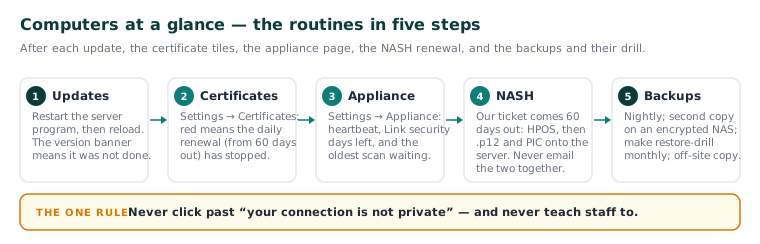
| A red tile | Settings → Certificates | Renewal (daily, from 60 days out) has stopped | KB-036 — A certificate is red in Settings → Certificates: what it means and who to tell |
| Appliance offline | The comms cupboard | Light, power, cable, internet, one restart | KB-011 — Appliance appears offline — five checks before you call |
| Appliance health | Settings → AI Appliance → Link security | Days left; Revoke… only for a missing box, disk or key | KB-057 — Check appliance health and link security in Settings → AI Appliance, and revoke a certificate |
| Renew NASH | PRODA → HPOS, then Settings → HI Service | Request a NASH PKI site certificate; .p12 and PIC onto the server |
KB-021 — NASH certificate renewal — step-by-step |
| Main app will not load | http://<practice-server>:8080/admin |
Same sign-in | KB-068 — Use the standalone admin console when the main app won't load |
| Restore | A Restore from backup request | Never pg_restore by hand |
KB-069 — Request a restore from backup |
The routines
| When | Do | More |
|---|---|---|
| After any update | Restart the server program; the version banner goes | KB-037 — Screens blank or behaving oddly after an update: the version-mismatch banner |
| Weekly | Settings → Certificates all green; Settings → AI Appliance heartbeat and link days | KB-057 — Check appliance health and link security in Settings → AI Appliance, and revoke a certificate |
| Monthly | make restore-drill at the server; confirm the second copy landed |
KB-067 — Set up nightly backups, a second copy and a monthly restore drill |
| Always | Every backup copy on encrypted storage (HI Service condition) | KB-067 — Set up nightly backups, a second copy and a monthly restore drill |
| Cupboard | 10 cm airflow, under about 30 °C, wall socket, cable labelled | KB-013 — Preparing your comms cupboard — appliance environment guide |
Before you call support
| Check | More |
|---|---|
| Solid green light = healthy; look at the network | KB-010 — Appliance status lights and what they mean |
| Power, cable, link light, internet, one restart — not more | KB-011 — Appliance appears offline — five checks before you call |
| One computer warns = that computer's trust; all warn = the server's certificate | KB-036 — A certificate is red in Settings → Certificates: what it means and who to tell |
| The two version numbers on the banner | KB-037 — Screens blank or behaving oddly after an update: the version-mismatch banner |
| On an Appliance issue ticket, tick diagnostics consent | KB-011 — Appliance appears offline — five checks before you call |
Clinic cannot see patients? Call 1300 XXX XXX, option 1 (KB-006 — How to report a clinic-down emergency (and what happens next)).
The one rule
Never click past "your connection is not private", and never teach staff to. It is the only sign a computer is talking to something other than the practice's server (KB-035 — Make a new PC, Mac or locum laptop trust Curaeon ("Your connection is not private")).
Start here: KB-096 — Start here: I look after the computers.