Start here: I look after the computers
Nine articles for whoever looks after the practice's workstations, server and appliance — you, a local IT firm, or the practice manager on a quiet afternoon.
One page to pin beside the monitor: the quick-reference guide for this role is KB-113 — Quick reference: computers. The Help Centre's print view drops the navigation, so it prints as one sheet.
How to use this page
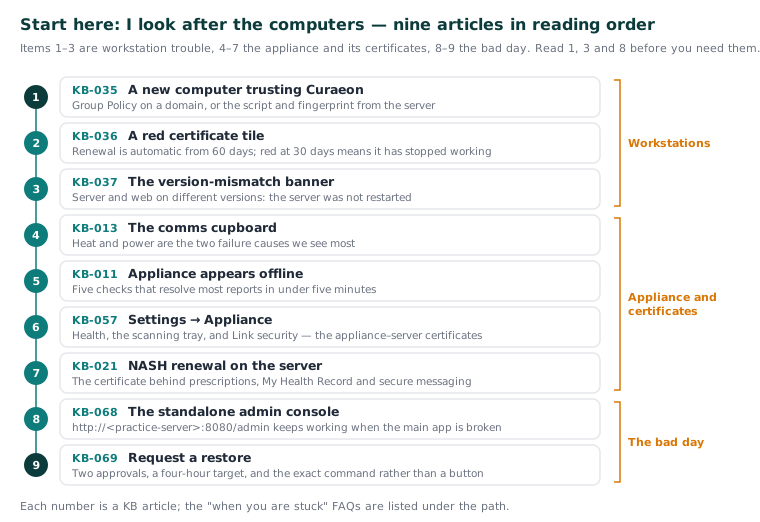
Curaeon runs on the practice's own network: a server on the LAN, an object store, an optional scribe appliance, and workstations that need nothing installed except trust in the practice's own certificate. Items 1–3 are workstation trouble, 4–7 the appliance and its certificates, 8–9 the bad day. Read 1, 3 and 8 before you need them.
The path
-
KB-035 — Make a new PC, Mac or locum laptop trust Curaeon ("Your connection is not private") — A new computer trusting Curaeon. Curaeon uses a certificate from the practice's own authority, so each PC, Mac or locum laptop trusts that authority once — by Group Policy on a domain, or with the script and fingerprint from the server. Afterwards: the browser stops warning, the scribe can use the microphone, and nobody clicks past the warning.
-
KB-036 — A certificate is red in Settings → Certificates: what it means and who to tell — A red certificate tile. Renewal is automatic from 60 days out; a tile turns red at 30 days, which means renewal has stopped working. Afterwards: you can say what each certificate does, what stops when it expires, and who needs to know today.
-
KB-037 — Screens blank or behaving oddly after an update: the version-mismatch banner — The version-mismatch banner. A banner on every screen saying the server and web are different versions means the server was not restarted after an update. Afterwards: most "the screen has gone blank" reports end with a restart rather than a call.
-
KB-013 — Preparing your comms cupboard — appliance environment guide — The comms cupboard. Heat and power are the two failure causes we see most. Afterwards: the appliance has a home that prevents the outages that would otherwise be your problem.
-
KB-011 — Appliance appears offline — five checks before you call — Appliance appears offline. Five checks that resolve most reports in under five minutes. Afterwards: you clear the common causes yourself, and hand us exactly what we need when it is not one of them.
-
KB-057 — Check appliance health and link security in Settings → AI Appliance, and revoke a certificate — Settings → AI Appliance. The appliance's health page, how the scanning tray is keeping up, and Link security — the certificates between appliance and server, red under 30 days, an expired one stopping the scribe. Afterwards: you can read the appliance's health and revoke a certificate when a box, disk or key has gone missing.
-
KB-021 — NASH certificate renewal — step-by-step — NASH renewal on the server. The certificate that keeps prescriptions, My Health Record and secure messaging flowing. Afterwards: you can renew it before it expires, step by step.
-
KB-068 — Use the standalone admin console when the main app won't load — The standalone admin console. A second door at
http://<practice-server>:8080/admin, built into the server program with the same sign-in, keeps working when the main app is broken. Afterwards: you can reach backups, sessions and storage on the day the main screens will not load, because you bookmarked it beforehand. -
KB-069 — Request a restore from backup — Request a restore. A standard request with two approvals and a four-hour target; the console prints the exact command rather than offering a button, because a one-click restore would pull the database out from under running consults. Afterwards: you can ask for one the right way and know why it goes through us.
When you are stuck
Your practice's server is not on a public status page: it runs in your practice, so its health is visible on site — the version banner and Settings → AI Appliance. The status page at status.curaeon.com.au covers the services Curaeon runs and national services such as Medicare and eRx (KB-009 — Subscribe to status updates for your clinic). KB-082 — What to have ready before you contact support says what to have ready before a ticket; for a clinic that cannot see patients right now, KB-006 — How to report a clinic-down emergency (and what happens next) is the emergency line.
Important: Every place a backup is kept must be encrypted — the dumps are not separately encrypted, and a copy on an unencrypted laptop or USB drive breaks a condition of the practice's HI Service connection (KB-067 — Set up nightly backups, a second copy and a monthly restore drill).
Related articles
- KB-093 — Start here: I work at reception — Start here: I work at reception
- KB-094 — Start here: I'm a GP or nurse — Start here: I'm a GP or nurse
- KB-095 — Start here: I'm the practice manager — Start here: I'm the practice manager
- KB-085 — Glossary: the words Curaeon uses — Glossary: the words Curaeon uses