Start here: I work at reception
Ten articles, in the order a new receptionist meets the work — read them across your first week and you will be able to run the desk on your own.
One page to pin beside the monitor: the quick-reference guide for this role is KB-110 — Quick reference: reception. The Help Centre's print view drops the navigation, so it prints as one sheet.
How to use this page
Read them in order; each assumes the ones before it, and none takes more than ten minutes.
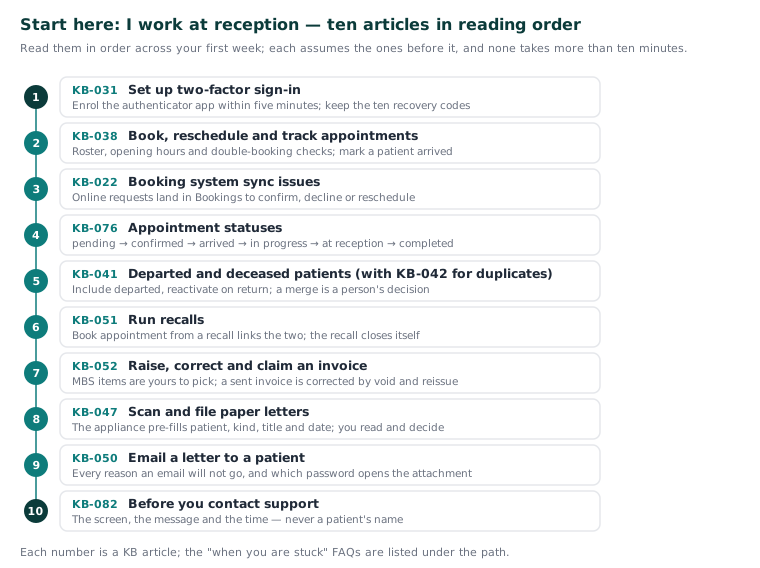
The path
-
KB-031 — Set up two-factor sign-in for Curaeon, and fix a code that is rejected, already used or timed out — Set up two-factor sign-in. Your first sign-in enrols an authenticator app and gives you ten recovery codes; finish within five minutes or the QR code expires. Afterwards: you sign in with a code every day and know what "that code has already been used" means.
-
KB-038 — Book, reschedule and track appointments in the Calendar — Book, reschedule and track appointments. Booking checks the roster, the opening hours and existing appointments, and tells you when you are double-booking. Afterwards: you can book into the right slot, mark a patient arrived, and know what a cancellation does to a recall.
-
KB-022 — Booking system sync issues — first steps — Booking system sync issues. Requests from the public booking portal arrive in Bookings to confirm, decline or reschedule. Afterwards: you can work that queue and run the first checks when the diary and the online service disagree.
-
KB-076 — Appointment statuses from pending to completed, and what "At reception" means — Appointment statuses. A visit runs pending → confirmed → arrived → in progress → at reception → completed; "at reception" is the gap between the doctor finishing and the patient paying and rebooking. Afterwards: you can read the Calendar at a glance and see who is in front of you.
-
KB-041 — Find a departed patient, reactivate them, or record a death or departure — Departed and deceased patients (with KB-042 — Find and merge duplicate patient records for duplicates). Tick include departed to find someone who has left, reactivate them when they return, and record a death or departure so recalls, reminders and letters stop. Afterwards: you can find any patient, and know that a merge is a person's decision, never the software's.
-
KB-051 — Run recalls: book from a recall, and why a recall stays open or comes back — Run recalls. Book appointment from a recall links the two, and the recall closes itself when the visit is completed. Afterwards: you can work the worklist from due to done, and explain why a recall stayed open or came back.
-
KB-052 — Raise, correct and claim an invoice, including when "Send to Medicare…" is blocked — Raise, correct and claim an invoice. Items come from the MBS schedule the practice has loaded — Curaeon never suggests one — and a sent invoice is corrected by void and reissue. Afterwards: you can bill a visit, take payment, and read what Send to Medicare… is telling you.
-
KB-047 — Scan and file paper letters, including the appliance's pre-filled suggestions — Scan and file paper letters. The appliance pre-fills patient, kind, title and date from the page; you read the page and decide. Afterwards: the day's paper is in the right record, dated by the letter, in front of the right doctor.
-
KB-050 — Email a letter to a patient: password, refused characters, "I can't open it" — Email a letter to a patient. Every message Curaeon shows when an email will not go — no consent, no address, a refused address, a character it cannot show. Afterwards: you can clear most refusals yourself and tell a patient which password opens their attachment.
-
KB-082 — What to have ready before you contact support — Before you contact support. The version banner explains most "the screen has gone blank" reports, and its fix is a server restart. Afterwards: you can raise a ticket that is answered first time — the screen, the message and the time, never a patient's name (KB-007 — Why we never need patient details in a support ticket).
When you are stuck
The desk's FAQs are KB-091 — Recalls and reminders FAQ (recalls and reminders), KB-092 — Documents and scanning FAQ (documents and scanning) and KB-089 — Emailing patients FAQ (emailing patients). If the clinic cannot see patients right now, call and choose option 1. And when Curaeon asks why you are opening a record, the prompt is normal — KB-062 — Why Curaeon asks your reason for opening a record explains it.
Related articles
- KB-094 — Start here: I'm a GP or nurse — Start here: I'm a GP or nurse
- KB-095 — Start here: I'm the practice manager — Start here: I'm the practice manager
- KB-096 — Start here: I look after the computers — Start here: I look after the computers
- KB-085 — Glossary: the words Curaeon uses — Glossary: the words Curaeon uses